KIDO Desk Troubleshooting Guide
Check here if you have a problem
If something does not seem right while using your KIDO Desk, check this guide. Most problems can be solved with a few simple steps.
Contents
- Desk Does Not Move
- Desk Stops or Reverses While Moving
- Unusual Movement
- Desk Panel Problems
- App Problems
- Unusual Noise or Smell
- Wood-Related Issues
- If the Problem Persists
Safety Check Before Operating
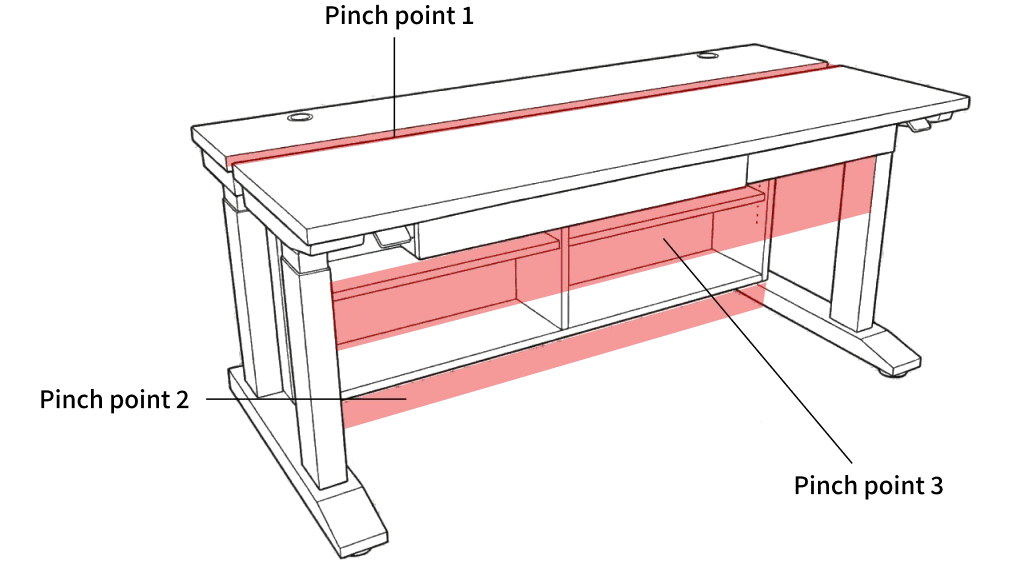
Even while troubleshooting, always make sure that no body parts, pets or obstacles are in the following three areas.
- Between the front tabletop and the rear tabletop (gap of approx. 2.5 cm (1 in))
- Between the underside of the storage shelf and the floor (the rear tabletop and the shelf move down as one unit)
- Between the underside of the front tabletop (including the drawer) and the chair or the user’s legs
Collision detection (PIEZO) is a supplementary safety feature and cannot detect every collision.
Desk Does Not Move
Check the following if the tabletop does not move at all.
Check the Power
Symptom: Nothing happens when you tilt the paddle. The display does not light up.
Check:
- Is the power plug firmly inserted into the wall outlet?
- If you are using a power strip, is its switch turned ON?
- Is the power strip itself plugged into the wall outlet?
Solution: Firmly reinsert the power plug.
Initialization May Be Required
Symptom: The display lights up, but the tabletop does not move when you tilt the paddle.
Common situations:
- Right after switching on the power for the first time
- After a power outage or after the desk has been unplugged for a long time
- After moving the desk, for example to a new home
Solution: Initialize (reset) the lifting system.
- Tilt the paddle “down” and hold it.
- Keep holding until the tabletop reaches its lowest position.
- Release the paddle at the lowest position.
- Within 10 seconds, tilt the paddle “down” again and hold it.
- The tabletop moves down slightly further, then moves up approx. 5 mm (0.2 in) and stops.
- Do not release the paddle until all movement has completely stopped. If you release it too early, initialization is interrupted and you must start over.
Collision detection (PIEZO) is completely disabled during initialization. Always make sure that there are no people, pets or obstacles under or around the desk before you start.
Note: Perform initialization once on each of the two desk panels (one for the front tabletop and one for the rear tabletop).
Is the Key Lock On?
Symptom: A lock symbol is shown on the display, and the desk does not move when you tilt the paddle.
Solution: Unlock the desk panel using the unlock method you have set.
| Unlock method | Operation |
|---|---|
| Double tap | Quickly tap the paddle twice |
| Double tap, second press to drive | Quickly tap the paddle twice (the desk starts moving right away) |
| Connect button + double tap | Press the connect button on the bottom, then quickly tap the paddle twice |
If you do not know which unlock method is set, check it in the Desk Connect app under “Settings” → “Keylock”.
Has a Height Limit Been Reached?
Symptom: The desk does not move above (or below) a certain height.
Solution: A height limit may have been set.
- Check it in the Desk Connect app: “Control” screen → gear icon → “Desk height limits”.
- You can also check it in the desk panel’s settings mode (LIMITS menu).
- Change the limits, or remove them with “CLEAR LIMITS”.
Has the Duty Cycle Limit Been Reached?
Symptom: The desk stopped moving after being raised and lowered continuously for a while.
Cause: Continuous use is limited to protect the motors. After 1 minute of continuous operation, a 9-minute rest is required.
Solution: Wait at least 9 minutes before operating the desk again. Normal switching between sitting and standing will rarely reach this limit.
Has the Overload Protection Been Triggered?
Symptom: The desk does not move when heavy items are on it.
Cause: If the load per tabletop (80 kg (176 lb)) is exceeded, the motor overload protection (EOP) is activated.
Solution: Remove some of the load from the tabletop, then try again.
Check the Cable Connections
Symptom: You have checked all of the causes above, but the tabletop still does not move at all.
Solution: Check the cable connections between the control box and the lifting columns. If a cable is loose, firmly reinsert it.
Desk Stops or Reverses While Moving
If the desk suddenly stops while moving, or moves slightly in the opposite direction.
Collision Detection (PIEZO) Was Triggered
Symptom: The desk suddenly stopped while moving and reversed (moved back) slightly.
Cause: PIEZO collision detection detected an obstacle and stopped the desk for safety.
Solution:
- Check for obstacles around the desk (above, below and at the sides).
- Remove any obstacles, then operate the desk again.
Note: Collision detection is a “supplementary safety feature.” It may not detect soft objects (cushions, clothing, soft parts of the human body), collisions right after the desk starts moving or just before it stops, or collisions while moving down with a light load.
Uneven Load May Be the Cause
Symptom: The desk stops and reverses while moving even though there is no obstacle.
Cause: If the weight is concentrated on one side of the tabletop (uneven load), collision detection may trigger by mistake.
Solution: Distribute the load evenly on the tabletop. If heavy items such as monitor arms are concentrated at one end, rearrange them.
Are the Desk Panel Screws Loose?
Symptom: The desk frequently stops and reverses even though there is no obstacle and no uneven load.
Cause: If the mounting screws of the desk panel (DPI1C) are loose, PIEZO collision detection may trigger by mistake.
Solution: Check that the four screws holding the desk panel are tight, and retighten them if they are loose.
Unusual Movement
If the desk moves, but not smoothly.
Movement Is Jerky or Uneven
Solution: Initialization may not have been completed. Perform initialization again (see the procedure above).
The Two Tabletops Show Different Heights
Cause: The front tabletop and the rear tabletop are driven by separate, independent systems, so their heights are managed separately.
Solution:
- Calibrate the height display on each desk panel.
- Settings mode → HEIGHT → set to the actual height
- Perform initialization again on each desk panel.
Desk Panel Problems
The Display Does Not Light Up
Check:
- Is the power on? (See “Check the Power” above.)
- The display turns off to save power when the desk has not been used for a while. Touch the paddle.
The Height Shown Differs from the Actual Height
Solution: Calibrate the height display.
- Use a tape measure to measure the actual height from the floor to the top surface of the tabletop.
- Enter settings mode (press the connect button and tilt the paddle down at the same time for 3 seconds).
- At “HEIGHT”, press the connect button.
- Use the paddle to set the value to the actual height.
- Press the connect button to save.
Note on the two-panel setup: The front tabletop and the rear tabletop each have their own desk panel. Calibrate each desk panel separately.
Cannot Enter Settings Mode
Common mistakes:
- The connect button and the paddle are not operated at the same time → Operate them at the same time
- They are not held for 3 seconds → Hold them for a full 3 seconds
- You cannot find the connect button → It is on the bottom (underside) of the desk panel
The Screen Returns on Its Own During Settings
Cause: This is normal. Settings mode ends automatically if there is no operation for 30 seconds.
Solution: Perform each operation within 30 seconds.
App Problems
The Desk Cannot Be Found (Pairing Fails)
Checklist:
- Did you press the connect button on the bottom of the DPI1C for 2 seconds to enter pairing mode?
- Is the Bluetooth icon shown on the display?
- Is Bluetooth enabled on your smartphone?
- On Android devices, is GPS location enabled? (Required for BLE scanning)
- Is your smartphone close to the DPI1C?
- Is the app up to date? (Check in the App Store / Google Play)
The App Keeps Disconnecting
Cause:
- iOS devices: The connection is lost when you close the Desk Connect app (move it to the background).
- Android devices: Even when the app is closed, it tries to connect automatically to the last connected desk (within range).
Solution: On iOS, keep the app in the foreground while operating the desk. When you open the app again, it tries to reconnect automatically.
Settings Made in the App Are Not Applied
Cause: You may be using both the settings mode on the DPI1C and the app settings.
Solution: When the desk panel connects to the app, the app settings (favorite positions and units) overwrite the settings on the desk panel. Use either the app or the desk panel for settings, not both.
Cannot Connect the App to the Second Desk Panel
Procedure:
- On the “Settings” screen, tap “My desks”.
- Tap “CONNECT NEW DESK”.
- Press the connect button on the second DPI1C for 2 seconds to enter pairing mode.
- Tap “THIS IS MY DEVICE” and select the desk ID to connect.
Unusual Noise or Smell
Unusual Noise While Moving
Possible causes and solutions:
| Type of noise | Possible cause | Solution |
|---|---|---|
| Rattling or clattering | Anti-vibration pads between the tabletop and the frame have shifted | Check and adjust the position of the anti-vibration pads |
| Creaking or grinding | Poor connection of a lifting column | Check the cable connections between the control box and the lifting columns |
| Louder operating noise than usual | Uneven load | Distribute the load evenly |
About normal operating noise: The operating noise of KIDO Desk is 55 dB(A) or less. This is about the level of ambient sound in a quiet office, but it is not silent.
Unusual Smell from the Control Box
If an unusual smell or smoke comes from a control box (this product has two), stop using the desk immediately and unplug the power plug from the outlet. Then contact Shimizu Zaimokuten.
Wood-Related Issues
Small Cracks or Warping in the Tabletop
This is not a defect. Natural wood is a living material that expands and contracts slightly with changes in temperature and humidity. Minor warping and cracks caused by this are a natural characteristic of solid wood.
Prevention:
- Avoid places exposed to direct sunlight for long periods.
- Avoid places where air from an air conditioner blows directly on the desk.
- Keep the room humidity at a moderate level (20–80%).
Stains or Water Rings on the Tabletop
Oil finish:
- Lightly sand the stained area with fine sandpaper (approx. 240–400 grit).
- Apply oil to finish.
Urethane finish:
- Wipe with a diluted neutral detergent, then wipe with a cloth dampened with water.
- Do not sand (this damages the coating).
If the Problem Persists
Try the following three reset methods in order.
Step 1: Restart the Power
Unplug the power plug from the outlet, wait 30 seconds, then plug it in again.
Step 2: Perform Initialization Again
Perform the initialization procedure above again on both the front and rear desk panels.
Step 3: Restore Factory Settings
Reset the desk panel settings to their default values.
- Enter settings mode (press the connect button and tilt the paddle down at the same time for 3 seconds).
- Tilt the paddle to move to “RESTORE”.
- Press the connect button to enter the menu, then press the connect button again to confirm the restore.
Note: Restoring resets all settings, including favorite positions, limits and units. After restoring: After restoring the factory settings, start again from initialization (Step 2). Also set your height limits and favorite positions again.
Contacting Support
If the problem is still not solved, please feel free to contact us.
Shimizu Zaimokuten
- Website: https://shimizuzaimokuten.com/
- Email: [email protected]
Having the following information ready helps us assist you:
- Your name and the email address used for your order
- Details of the problem (since when, which tabletop, and during which operation it occurs)
- Solutions you have already tried
The contents of this document are subject to change without notice for product improvement. Check the website for the latest version.