KIDO Desk Desk Panel (DPI1C) Operation Guide
Electric Height-Adjustable Desk Shimizu Zaimokuten
This guide explains in detail how to operate the LINAK desk panel (DPI1C) installed on the KIDO Desk. It covers every desk panel function, from basic operation to the settings menu. For safety information, be sure to read the supplied “Safety Instructions” and the “User Manual”.
Contents
- Desk Panel Overview
- Parts and Names
- Basic Operation (Raising and Lowering)
- Reading the Display
- Using Settings Mode
- Calibrating the Height Display (HEIGHT)
- Changing Units (UNITS)
- Favorite Positions (FAV. POS.)
- Setting Height Limits (LIMITS)
- Restoring Factory Settings (RESTORE)
- Initializing the Lifting System
- Key Lock
- Automatic Drive
- Using the Desk Connect App
- Troubleshooting
- Maintenance
Safety Check Before Operation (Please Read)
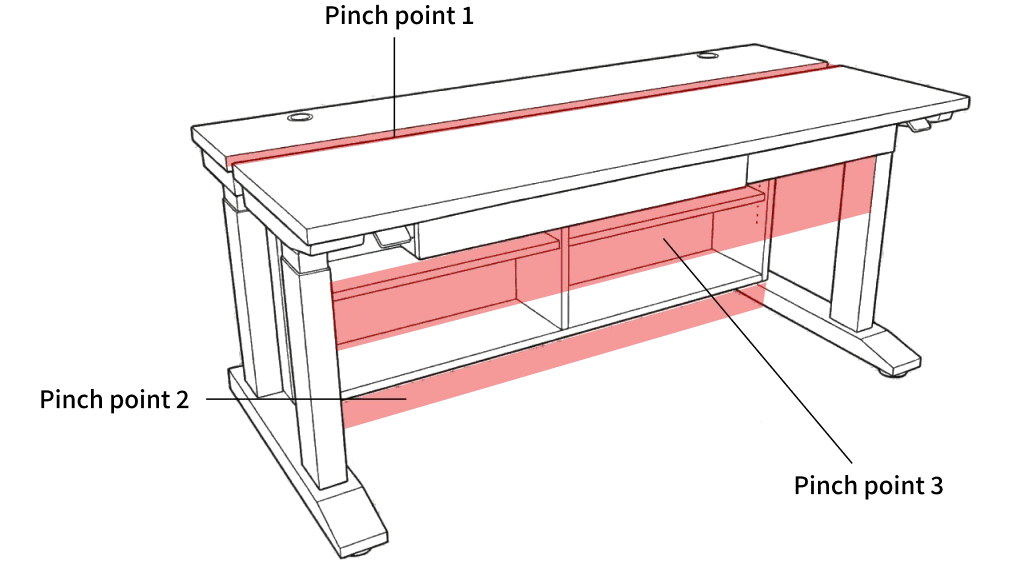
Before raising or lowering, always make sure there are no people, pets or obstacles at the following three hazard points.
- Between the front tabletop and the rear tabletop (gap of approx. 2.5 cm (1 in))
- Between the underside of the storage shelf and the floor (the rear tabletop and shelf move down together as one unit)
- Between the underside of the front tabletop (including the drawer) and the chair or the user’s legs
Never let children operate the desk without adult supervision. Collision detection (PIEZO) is a supplementary safety feature and cannot detect every collision.
For details, see the “Safety Instructions” and the “User Manual”.
1. Desk Panel Overview
1-1. Desk Panel Configuration
The KIDO Desk is equipped with two LINAK “DPI1C” desk panels.
| Desk panel | Controls |
|---|---|
| DPI1C for the front tabletop | Raises and lowers the front tabletop (the work surface nearest you) |
| DPI1C for the rear tabletop | Raises and lowers the rear tabletop (the back tabletop that reveals the shelf) |
Each desk panel operates only its own tabletop. It does not affect the other tabletop.
1-2. Main Features of the DPI1C
- Paddle-type control panel with display
- Intuitive height adjustment by simply tilting the paddle
- Real-time display of the current tabletop height
- Up to 4 saved favorite positions
- Automatic drive (double-tap to move automatically to a favorite position)
- Built-in Bluetooth Low Energy (connects to the Desk Connect app)
- Height limit settings (upper and lower)
- Key lock (prevents accidental operation)
2. Parts and Names
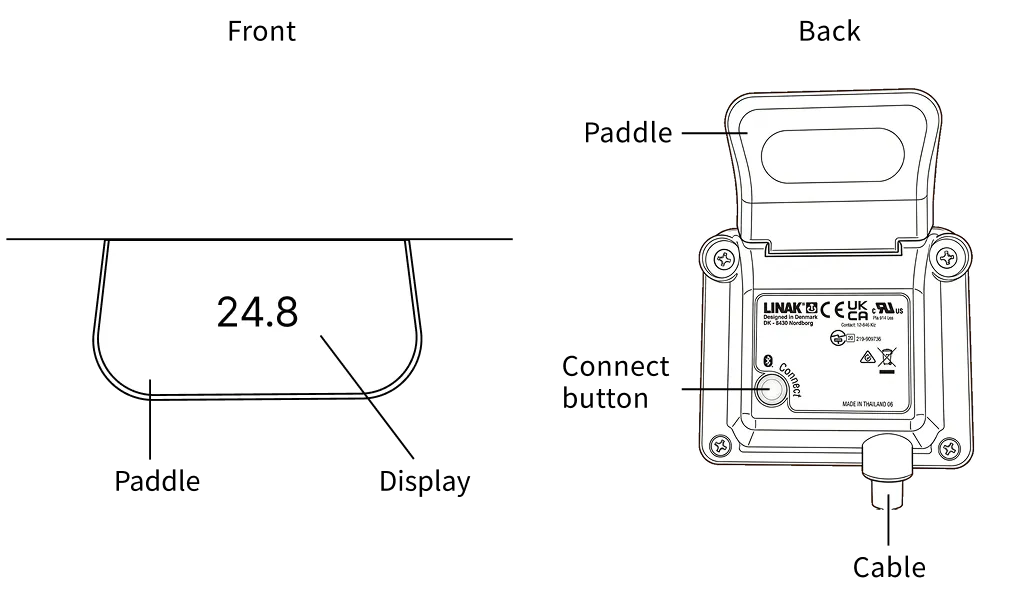
2-1. Exterior
| Part | Location | Description |
|---|---|---|
| Paddle | Top of the desk panel | Main control; tilt up or down to raise or lower the desk. Every operation starts here |
| Display | Face of the paddle | Shows the current height, settings menu and various icons |
| Connect button | Bottom of the desk panel | Small button used for pairing and for entering settings mode |
2-2. Desk Panel Mounting
The DPI1C is fixed to the underside of the tabletop (near the front edge) with 4 screws.
If the desk panel’s mounting screws come loose, the PIEZO collision detection sensor built into the DL12 lifting columns may trigger falsely, causing the desk to stop or reverse unexpectedly while moving. If the screws feel loose, retighten all 4 screws firmly (recommended torque: at least 1 Nm). Do not overtighten.
3. Basic Operation (Raising and Lowering)
3-1. Raising and Lowering the Tabletop
| Action | How |
|---|---|
| Raise the tabletop | Tilt the paddle up and hold |
| Lower the tabletop | Tilt the paddle down and hold |
| Stop | Release the paddle |
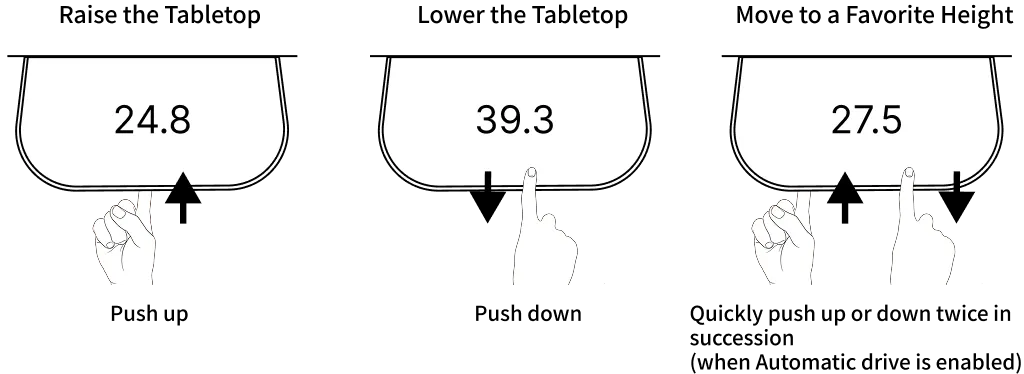
- The tabletop moves only while you hold the paddle. It stops at its current position when you release it.
- While moving, the display shows the current height in real time.
- Soft start and stop provides smooth acceleration and deceleration at the start and end of movement.
3-2. Precautions During Operation
Before raising or lowering, always make sure there are no people, pets or obstacles at the following three hazard points.
- Hazard point 1: Between the front tabletop and the rear tabletop (gap of approx. 2.5 cm (1 in))
- Hazard point 2: Between the underside of the storage shelf and the floor (the rear tabletop and shelf move down together as one unit)
- Hazard point 3: Between the underside of the front tabletop (including the drawer) and the chair or the user’s legs
- Stay at the desk while it is moving. If anything seems wrong, release the paddle immediately.
- Duty cycle: After a maximum of 1 minute of continuous operation, allow the desk to rest for at least 9 minutes. Normal switching between sitting and standing rarely exceeds this.
4. Reading the Display
4-1. Normal Display
| Display | Description |
|---|---|
| Number (e.g. 72) | Current tabletop height (from the floor to the top of the tabletop) |
- The height unit can be set to CM, MM or INCH (see Section 7).
- The value changes in real time while the desk is moving.
- After a period of inactivity, the display turns off to save power. Touch the paddle to turn it back on.
4-2. Icons
| Icon | Position | Meaning |
|---|---|---|
| Settings icon | Top left | Settings mode is active |
| Bluetooth icon + desk ID | Full display | Pairing mode is active. The desk ID is shown |
| Key lock icon (padlock) | On the display | Key lock is active and the paddle is locked |
| Bell icon | On the display | Reminder notification (time to stand up) |
| Limit icon | On the display | A height limit (upper or lower) has been reached |
5. Using Settings Mode
5-1. Entering Settings Mode
Press the Connect button and operate the paddle at the same time.
Steps:
- While pressing the Connect button on the bottom of the desk panel, tilt the paddle down for 3 seconds at the same time.
- When the settings icon appears at the top left of the display, you are in settings mode.
5-2. Basic Operation in Settings Mode
| Action | How |
|---|---|
| Scroll through the menu | Tilt the paddle up or down |
| Select a menu / confirm a setting | Press the Connect button |
| Exit settings mode | Select the “EXIT” menu, or do nothing for 30 seconds |
5-3. Settings Menu Structure
In settings mode, the following menus appear in order. Tilt the paddle up or down to scroll.
| Order | Menu | Function |
|---|---|---|
| 1 | HEIGHT | Calibrates the displayed height to the actual height |
| 2 | UNITS | Changes the height unit (CM / MM / INCH) |
| 3 | FAV. POS. | Saves and clears favorite positions |
| 4 | LIMITS | Sets the upper and lower limits of the height range |
| 5 | RESTORE | Restores settings to their default values |
| 6 | EXIT | Exits settings mode |
5-4. Automatic Exit
Settings mode exits automatically after 30 seconds of inactivity. Any unsaved changes are discarded.
6. Calibrating the Height Display (HEIGHT)
Calibrate the display if the height shown differs from the actual height.
Steps
- Using a tape measure or similar, measure the actual height from the floor to the top of the tabletop.
- Enter settings mode and check that “HEIGHT” is shown (the first menu).
- Press the Connect button to enter the menu.
- Tilt the paddle up or down to set the displayed value to the measured height.
- Press the Connect button to save the new height.
Notes
- The unit can be changed in the UNITS menu (Section 7).
- After changing the height display, saved favorite positions may no longer match the actual height. Reset your favorites if necessary.
- The front tabletop and rear tabletop are managed by separate desk panels. Calibrate each desk panel separately.
7. Changing Units (UNITS)
Changes the unit of the height shown on the display.
Steps
- In settings mode, tilt the paddle to move to “UNITS”.
- Press the Connect button to enter the menu.
- Tilt the paddle up or down to switch between “CM”, “MM” and “INCH”.
- Press the Connect button to save the selected unit.
Notes
- When connected to the Desk Connect app, the unit set in the app overrides the unit selected in the DPI settings mode. If you use the app, set the unit in the app.
8. Favorite Positions (FAV. POS.)
You can save up to 4 frequently used heights and recall them quickly.
8-1. Saving a Favorite Position
- In settings mode, tilt the paddle to move to “FAV. POS.”.
- Press the Connect button to enter the menu.
- Tilt the paddle up or down to select the favorite number (1–4) to save to.
- Press the Connect button to confirm the selection.
- Tilt the paddle to move the desk to the desired height.
- Press the Connect button to select the height.
- Press the Connect button again to confirm and save.
8-2. Clearing All Favorite Positions
- In the favorites menu, tilt the paddle to move to “CLR FAV.”.
- Press the Connect button to select it.
- Press the Connect button again to confirm clearing all favorites.
Note: CLR FAV. clears all favorites at once. Favorites cannot be cleared individually in the DPI settings mode. Use the Desk Connect app to clear individual favorites.
8-3. Using Favorite Positions (Automatic Drive)
When favorite positions are saved and automatic drive is enabled:
- Double-tap the paddle up → the desk moves automatically to the nearest favorite position above the current position
- Double-tap the paddle down → the desk moves automatically to the nearest favorite position below the current position
- Touching the paddle during automatic movement stops the desk immediately.
- Automatic drive is enabled in the Desk Connect app (see Section 13).
9. Setting Height Limits (LIMITS)
Sets upper and lower limits for the tabletop’s height range. This helps prevent collisions with furniture or walls and prevents pinching accidents.
In homes with children or pets, always set a lower limit on the rear tabletop to prevent legs from being pinched between the storage shelf and the floor, and a lower limit on the front tabletop to prevent pinching between the front tabletop’s drawer and a chair or legs. Setting an upper limit is also recommended.
9-1. Setting a Limit
- In settings mode, tilt the paddle to move to “LIMITS”.
- Press the Connect button to enter the menu.
- Tilt the paddle to select “LOWER” (lower limit) or “UPPER” (upper limit).
- Press the Connect button to confirm the selection.
- Tilt the paddle to move the desk to the desired limit height.
- Press the Connect button to select the height.
- Press the Connect button again to save the limit.
9-2. Clearing Limits
- In the limits menu, tilt the paddle to move to “CLEAR LIM.”.
- Press the Connect button to select it.
- Press the Connect button again to confirm clearing all limits.
Note: CLEAR LIM. clears both the upper and lower limits at once.
9-3. Leaving the Limits Menu
- Tilt the paddle to move to “CANCEL” and press the Connect button to return to the settings menu.
10. Restoring Factory Settings (RESTORE)
Restores favorite positions, limit settings, unit settings and so on to the settings from the last configuration (the default values).
Steps
- In settings mode, tilt the paddle to move to “RESTORE”.
- Press the Connect button to enter the menu.
- Press the Connect button again to confirm the restore.
Notes
- Restoring returns favorite positions, limit settings, unit settings and so on to their default values.
- To cancel the restore, tilt the paddle on the confirmation screen and then press the Connect button.
- After restoring, redo height calibration (HEIGHT), limit settings (LIMITS) and favorite settings (FAV. POS.) as needed.
11. Initializing the Lifting System
The lifting system must be initialized (reset) after the power is connected for the first time, or after the power has been disconnected for a long period.
Collision detection (PIEZO) is completely disabled during initialization. Always make sure there are no people, pets or obstacles under or around the desk before you start.
Even outside initialization, PIEZO collision detection may not work in the following situations:
- Contact with soft objects (cushions, clothing, soft parts of the body, etc.)
- Immediately after movement starts (approx. 1 second) and just before it stops (approx. 1 second)
- When moving down with a light load
For details, see Section 1-5 of the “User Manual”.
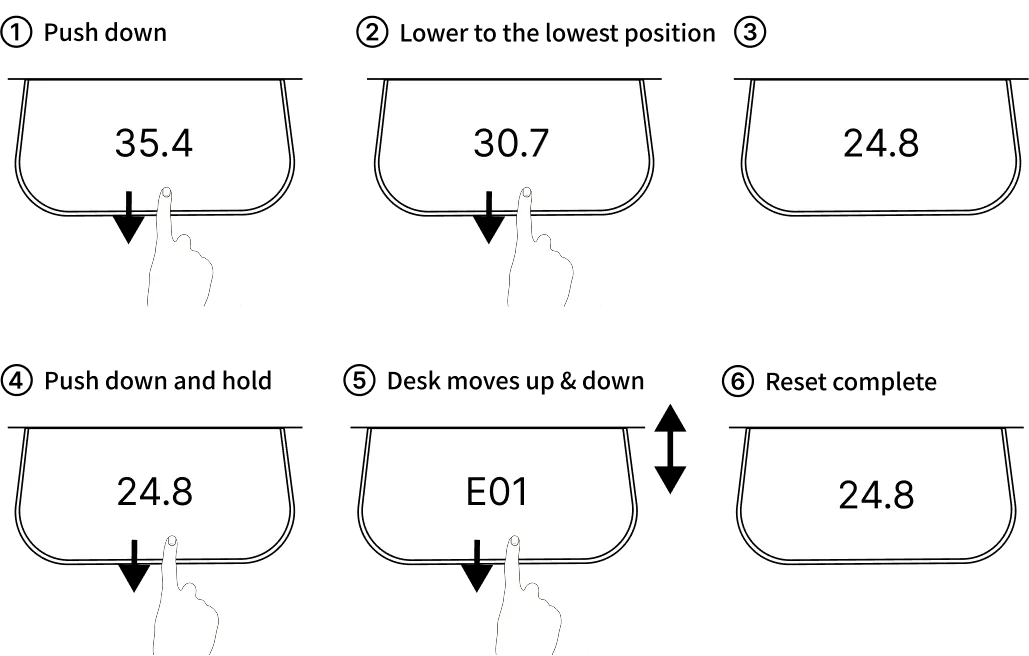
Steps (perform once on each desk panel, front and rear — twice in total)
- Tilt the paddle “down” and hold.
- Keep holding until the tabletop reaches its lowest position.
- When it reaches the lowest position, release the paddle.
- Within 10 seconds, tilt the paddle “down” again and hold.
- The tabletop lowers slightly further, then rises approx. 5 mm (0.2 in) and stops.
- Do not release the paddle until all movement has completely stopped.
Notes
- Releasing the paddle partway interrupts initialization. Start again from the beginning.
- Completion of initialization is indicated by the tabletop lowering slightly and then rising approx. 5 mm (0.2 in).
- The front tabletop and rear tabletop are separate systems. Initialize each desk panel separately.
12. Key Lock
Key lock is a safety feature that locks the paddle to prevent unintended movement.
12-1. Setting Up Key Lock
Key lock is set up in the Desk Connect app (“Settings” → “Keylock” in the app).
Available settings:
- Unlock method (choose from 3 types)
- Time until key lock activates (choose 3, 6 or 10 seconds; default: 10 seconds)
12-2. Unlock Methods
| Method | How to operate |
|---|---|
| Double tap | Double-tap the paddle to unlock, then tilt the paddle to operate |
| Double tap, second press to drive | Double-tap the paddle to unlock and start moving at the same time |
| Connect button, double tap | Press the Connect button, then double-tap the paddle to unlock, then operate |
12-3. Checking Key Lock Status
- While key lock is active, a padlock icon is shown on the display.
- The tabletop does not move if you operate the paddle while key lock is active.
Recommended: In homes with children or pets, keep key lock enabled at all times. The “Connect button, double tap” method is the safest.
13. Automatic Drive
Automatic drive moves the desk automatically to a favorite position when you double-tap the paddle.
13-1. Enabling Automatic Drive
Automatic drive is off by default. Enable it in the Desk Connect app under “Settings” → “Automatic drive”. To enable it, you must agree to the terms of use regarding safety responsibility.
Automatic drive is set up in the Desk Connect app (“Settings” → “Automatic drive” in the app).
13-2. Using Automatic Drive
When automatic drive is enabled and favorite positions are saved:
| Action | Result |
|---|---|
| Double-tap the paddle up | Moves automatically to the nearest favorite position above the current position |
| Double-tap the paddle down | Moves automatically to the nearest favorite position below the current position |
13-3. Stopping During Automatic Movement
- Tilt the paddle to stop immediately.
- Closing the Desk Connect app also stops the desk.
Even during automatic movement, always make sure there are no people, pets or obstacles at the three hazard points in Section 3-2. Always stay near the desk during automatic movement.
14. Using the Desk Connect App
14-1. Choosing a Setup Method
The DPI1C can be set up using either the DPI settings mode or the Desk Connect app.
Do not mix settings made in the DPI settings mode and in the Desk Connect app. When you connect to the app, the favorite positions and units set in the app override those set in the DPI settings mode.
14-2. Where Each Setting Can Be Made
| Setting | DPI settings mode | Desk Connect app |
|---|---|---|
| Height calibration | Yes | Yes |
| Change units | Yes | Yes (takes priority) |
| Save favorite positions | Yes | Yes (takes priority) |
| Clear individual favorite positions | No | Yes |
| Height limits | Yes | Yes |
| Restore factory settings | Yes | No |
| Key lock settings | No | Yes |
| Automatic drive settings | No | Yes |
| Reminder settings | No | Yes |
| Rename desk | No | Yes |
| Change DPI display language | No | Yes |
14-3. Pairing Mode
To pair the DPI1C with the Desk Connect app:
- Press the Connect button for 2 seconds to enter pairing mode.
- The display shows the Bluetooth icon and the desk ID (DESK + a 4-digit number).
- In the app, tap “THIS IS MY DEVICE”, then select the desk ID to connect.
* This product has two desk panels, so pair each desk panel separately. * On Android devices, you must enable GPS location in addition to Bluetooth.
15. Troubleshooting
| Symptom | Possible cause | Solution |
|---|---|---|
| Tabletop does not move when the paddle is tilted | Power is not on | Check the connection of the power plug and power strip |
| Tabletop does not move when the paddle is tilted | Initialization not completed | Initialize using the procedure in Section 11 |
| Tabletop does not move when the paddle is tilted | Key lock is active | Unlock using the unlock method you set |
| Tabletop does not move when the paddle is tilted | Height limit reached | Check or change the limit settings (Section 9) |
| Tabletop does not move when the paddle is tilted | Duty cycle exceeded | Wait at least 9 minutes, then try again |
| Tabletop does not move when the paddle is tilted | Overload protection (EOP) activated | Reduce the load on the tabletop, then try again |
| Display does not light up | Power is not on | Check the power connection |
| Display stays off | Power-saving mode | Touch the paddle to wake it |
| Displayed height differs from the actual height | Calibration needed | Calibrate using the procedure in Section 6 |
| Cannot enter settings mode | Incorrect procedure | Press the Connect button and tilt the paddle down at the same time for 3 seconds |
| Settings mode exits after 30 seconds | Normal behavior | Complete each step within 30 seconds |
| Desk suddenly stops or reverses while moving | PIEZO collision detection activated | Remove nearby obstacles and try again |
| Desk suddenly stops or reverses while moving | False trigger due to uneven load | Distribute the load evenly across the tabletop |
| Desk suddenly stops or reverses while moving | Loose desk panel screws | Retighten the 4 mounting screws |
| Automatic drive does not work | Feature not enabled | Enable automatic drive in the app |
| Automatic drive does not work | No favorites saved | Save a favorite position |
| Cannot release key lock | Unlock method unknown | Check the unlock method in the app |
| Cannot connect to the app | Not in pairing mode | Press the Connect button for 2 seconds to enter pairing mode |
If the Problem Persists
- Restart the power: Unplug the power plug, wait 30 seconds, then plug it back in.
- Initialize again: Initialize again using the procedure in Section 11.
- Restore factory settings: Restore using the procedure in Section 10 (all settings will be reset).
- Contact support: Contact Shimizu Zaimokuten.
16. Maintenance
16-1. Cleaning the Desk Panel
- Wipe with a soft, damp cloth.
- Ordinary cleaning detergents may be used.
- To disinfect, use 70% isopropyl alcohol on a soft cloth.
16-2. What Not to Do When Cleaning
| Do not | Reason |
|---|---|
| Spray cleaning agents or disinfectants directly onto the panel | Liquid can get inside and cause a malfunction |
| Use strongly alkaline or acidic detergents (outside pH 6–8) | Surface damage |
| Use bleach or chlorine-based cleaners | Surface damage |
| Use hand sanitizer gel | Damage from its ingredients |
The DPI1C is not sealed and contains electronic components. Take care not to let liquid or moisture enter any openings. Liquid getting inside can damage the circuit board and make the desk panel unusable.
Quick Reference
| To do this | Operation |
|---|---|
| Raise the tabletop | Tilt the paddle up and hold |
| Lower the tabletop | Tilt the paddle down and hold |
| Stop | Release the paddle |
| Move to a favorite | Double-tap the paddle up/down |
| Enter settings mode | Connect button + paddle down at the same time for 3 seconds |
| Select a menu | Press the Connect button |
| Scroll the menu | Tilt the paddle up or down |
| Enter pairing mode | Press the Connect button for 2 seconds |
| Release key lock (Double tap method) | Double-tap the paddle |
| Release key lock (Connect button method) | Connect button → double-tap the paddle |
| Initialize | Paddle down to the lowest position → release → paddle down again within 10 seconds |
The contents of this guide are subject to change without notice for product improvement. Please check the official website for the latest version.