KIDO Desk Quick Start Guide
Initial setup guide so you can start using the desk right after installation
Before reading this guide, be sure to read the enclosed “Safety Instructions”. For detailed operating instructions, see the online User Manual. https://kido.style/en/guides/manual/
Read This First
Thank you for choosing KIDO Desk.
Assemble the desk yourself by following the included Assembly Instructions exactly. The Assembly Instructions are also available as a PDF on the Manuals (PDF) page.
What you need to do once the desk is assembled:
- Connect the power cables
- Initialize the lifting system
- Set up the desk panels and the app (height limits, etc.)
- Install the shelf panels
- Route the cables for your own equipment (PC, monitor, etc.)
What’s Included
| Part | Qty | Purpose |
|---|---|---|
| Control box (CBD6S) (lifting control unit) | 2 | One for the front tabletop, one for the rear tabletop |
| Desk panel (DPI1C) (paddle-type control panel with display) | 2 | One for the front tabletop, one for the rear tabletop |
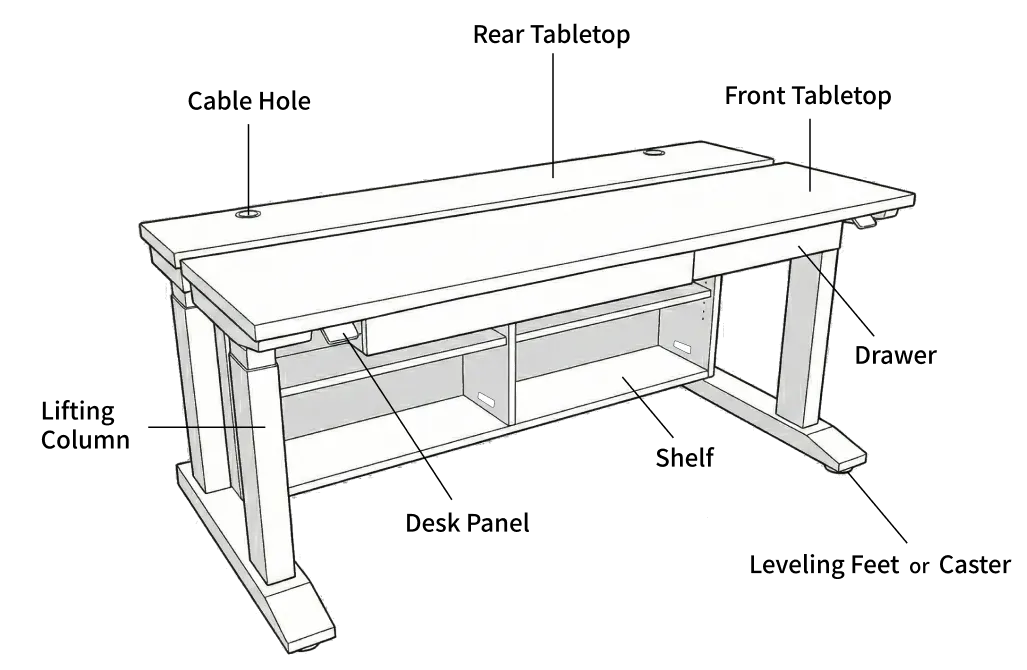
| Lifting column (DL12) | 4 | 2 per tabletop |
*Each desk panel operates only its own tabletop. *The front tabletop and the rear tabletop each have their own independent system.
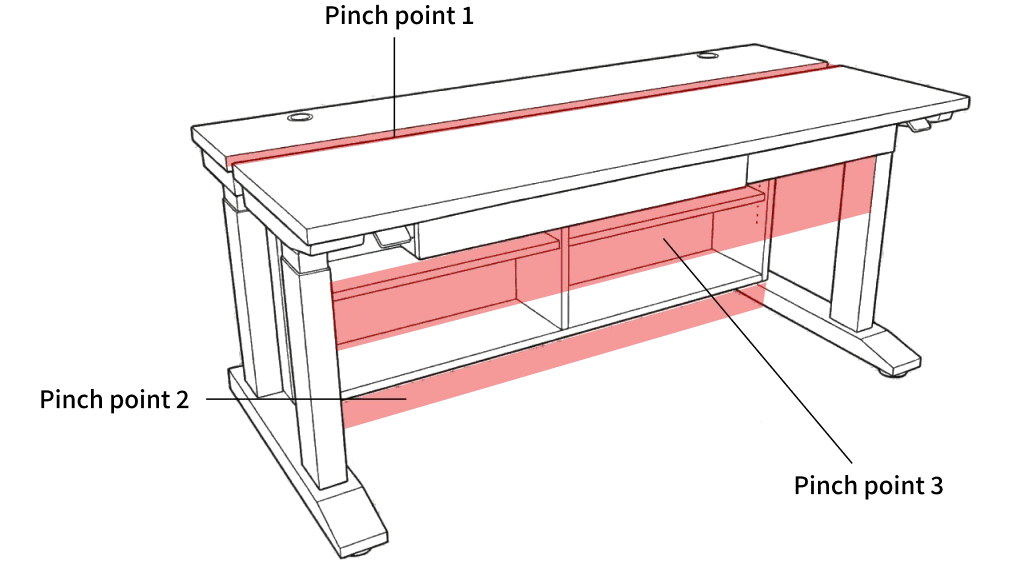
Because the two tabletops of this product move up and down independently, there is a risk of pinching at the following 3 locations. Before raising or lowering the desk, always read the enclosed “Safety Instructions”.
- Hazard area 1: Between the front tabletop and the rear tabletop (a gap of about 2.5 cm (1 in))
- Hazard area 2: Between the underside of the storage shelf and the floor (the rear tabletop and the shelf are one unit and move down together)
- Hazard area 3: Between the underside of the front tabletop (including the drawer) and a chair or the user’s legs
STEP 1: Connect the Power
1-1. Connect the Power Cables
- Open the cable storage space (behind the cable cover panel).
- Check that the power cables of the two control boxes (front tabletop and rear tabletop) are properly connected.
- Place a power strip (*not included) inside the cable storage space and plug the control boxes into it.
- Plug the power strip into a wall outlet.
CAUTION Keep the plug at the wall outlet within easy reach in case of emergency.
1-2. Check That the Power Is On
- If the desk panel (DPI1C) display shows a number (the current height), the power is on correctly.
- If nothing is displayed, check that the power strip switch is ON and that the plugs are fully inserted.
STEP 2: Initialize the Lifting System
After connecting the power for the first time, you must initialize the lifting system.
Without initialization, height adjustment and collision detection will not work correctly.
Collision detection is disabled during initialization. Make sure there are no people, pets or obstacles under or around the desk.
We recommend initializing before placing any equipment on the tabletops. During initialization, the tabletop lowers to its lowest position.
Initialization Procedure
Perform the following procedure once on each desk panel — front tabletop and rear tabletop — for a total of two times.
① Tilt the desk panel paddle "down" and hold it.
     ↓
② Keep holding until the tabletop has lowered all the way to its lowest position.
     ↓
③ When it reaches the lowest position, release the paddle.
     ↓
④ Within 10 seconds, tilt the paddle "down" again and hold it.
     ↓
⑤ The tabletop lowers a little further, then rises about 5 mm (0.2 in) and stops.
     ↓
⑥ Do not release the paddle until all movement has completely stopped.
     ↓
  ✓ Initialization complete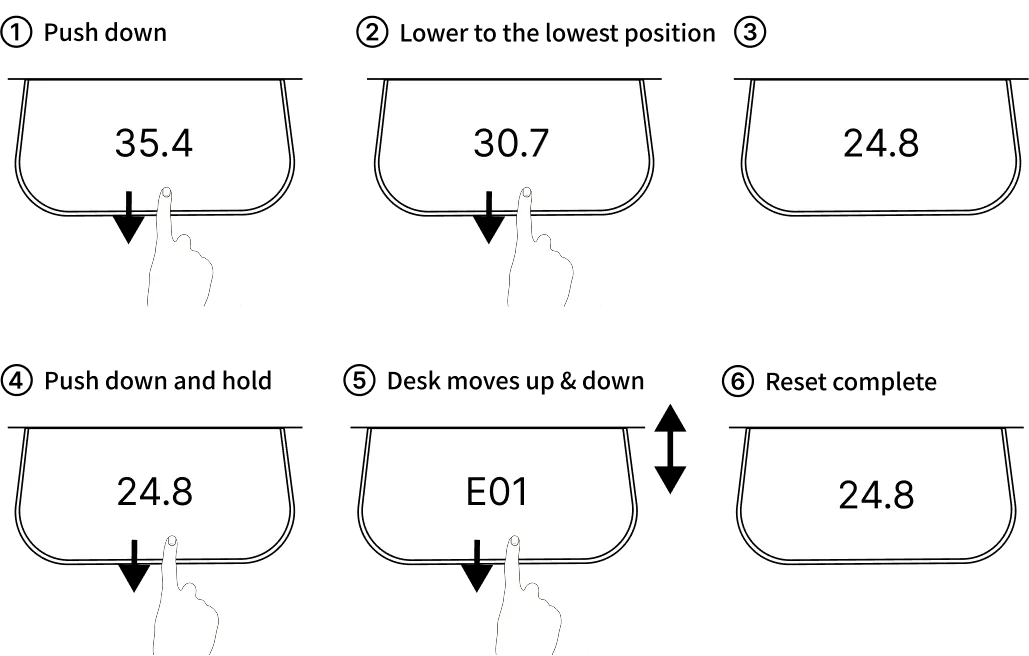
Points to note:
- If you release the paddle partway through, initialization is interrupted. Start over from the beginning.
- Complete initialization on both desk panels (front tabletop and rear tabletop).
STEP 3: Check the Basic Operation
Basic Operation of the Desk Panel (DPI1C)
The desk panel is a paddle-type panel with a display, mounted on the front edge of the tabletop.
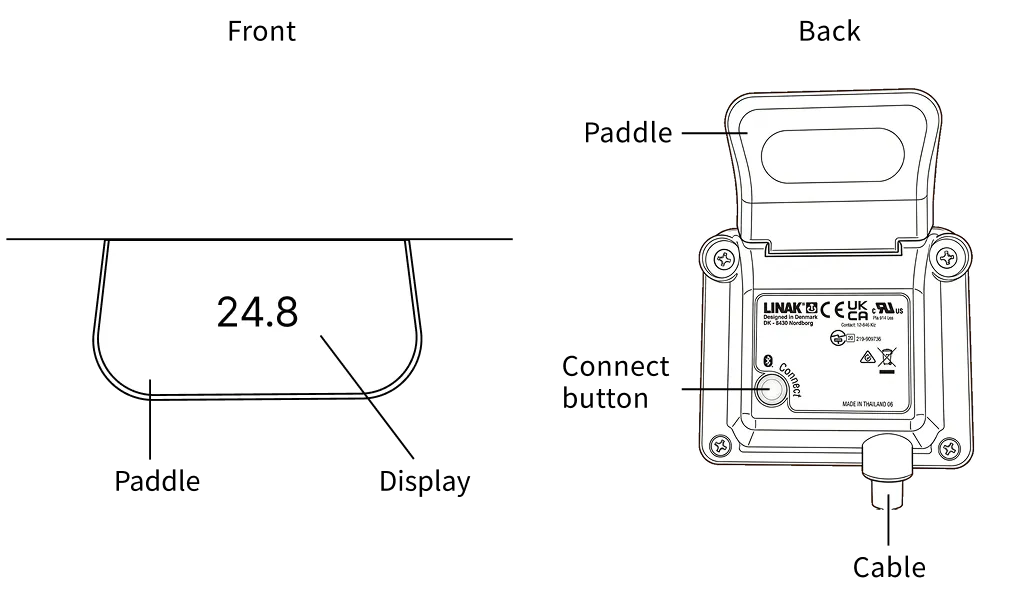
| Operation | How |
|---|---|
| Raise the tabletop | Tilt the paddle up and hold it |
| Lower the tabletop | Tilt the paddle down and hold it |
| Stop | Release the paddle |
| Move to a favorite position | Double-tap the paddle up or down (when automatic drive is enabled) |
- The display shows the current height of the tabletop.
- When you release the paddle, the tabletop stops at that position.
3-1. Operation Check
- Tilt the paddle up and check that the tabletop rises.
- Release it and check that the tabletop stops.
- Tilt the paddle down and check that the tabletop lowers.
- Release it and check that the tabletop stops.
If everything works correctly, basic height adjustment is complete.
The lifting motors can run continuously for a maximum of 1 minute. After continuous operation, allow at least 9 minutes of rest. Normal switching between sitting and standing will not exceed this limit.
The collision detection of this product is a supplementary safety feature and does not activate in the following cases:
- Immediately after movement starts (about 1 second) and immediately before it stops (about 1 second) — the desk does not stop automatically if it contacts an obstacle during this time
- Contact with soft objects (cushions, clothing, soft parts of the body, etc.)
- During initialization (reset) (collision detection is completely disabled)
When raising or lowering the desk, do not rely on collision detection. Always check visually that the surrounding area is clear.
3-2. Check and Adjust the Height Display
If the height shown on the display differs from the actual height from the floor to the top surface of the tabletop, you can adjust it as follows.
- Using a tape measure or similar, measure the height from the floor to the top surface of the tabletop.
- Hold the connect button and, at the same time, tilt the paddle down for 3 seconds to enter setting mode.
- At the first menu, “HEIGHT”, press the connect button.
- Tilt the paddle up or down to match the actual height you measured.
- Press the connect button to save.
- Tilt the paddle to “EXIT” → press the connect button to leave setting mode.
*Check and adjust this on both desk panels (front tabletop and rear tabletop).
STEP 4: Safety Settings (Required)
4-1. Set the Height Limits (Upper and Lower)
To prevent accidents in which legs are pinched between the storage shelf and the floor, always set a lower height limit for the rear tabletop. Also set a lower limit for the front tabletop to leave enough space between the drawer and a chair or legs. If there are shelves or other obstacles above the desk, set an upper limit as well.
Setting on the Desk Panel (DPI1C):
- Hold the connect button (on the bottom of the desk panel) and, at the same time, tilt the paddle down for 3 seconds. → The desk panel enters setting mode (an icon appears in the upper left of the display).
- Tilt the paddle up or down to show “LIMITS” (the 4th menu).
- Press the connect button.
Setting the lower limit (LOWER):
- Tilt the paddle to show “LOWER” and press the connect button.
- Use the paddle to move the tabletop to a safe lower limit position.
- Guideline (rear tabletop): leave enough space between the shelf and the floor (a height at which a child’s legs cannot fit underneath)
- Guideline (front tabletop): leave enough space between the drawer and the chair
- Press the connect button to select the height, then press it again to save.
Setting the upper limit (UPPER): (if needed)
- Tilt the paddle to show “UPPER” and press the connect button.
- Use the paddle to move the tabletop to a safe upper limit position.
- Press the connect button to select the height, then press it again to save.
Exiting the settings:
- Tilt the paddle to “CANCEL” → press the connect button to return to the settings menu.
- Tilt the paddle to “EXIT” → press the connect button to leave setting mode.
*You can also set the limits from the Desk Connect app (see STEP 5). *We recommend setting limits on both desk panels (front tabletop and rear tabletop).
4-2. Set the Key Lock (Required in Homes with Children)
We recommend setting the key lock to prevent accidental operation by children or pets. You can set the key lock from the Desk Connect app (see STEP 5).
STEP 5: Set Up the Desk Connect App (Recommended)
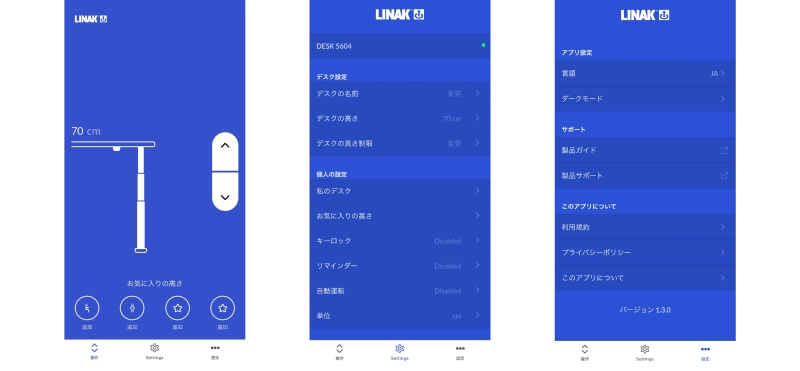
The dedicated smartphone app makes your KIDO Desk even more convenient to use.
5-1. Download the App
- iPhone: Search for “Desk Connect” on the App Store
- Android: Search for “Desk Connect” on the Google Play Store
5-2. Initial Pairing
This product has two desk panels (one for the front tabletop and one for the rear tabletop). Pair each of them with the app.
Pairing the first desk panel:
- Install and launch the app.
- Allow Bluetooth access (on Android devices, also turn on GPS location).
- Select your language and accept the terms of use.
- Press the connect button on the bottom of the first desk panel for 2 seconds. → The display shows the Bluetooth icon and the desk ID (DESK + a 4-digit number).
- Tap “THIS IS MY DEVICE” in the app.
- Select the desk ID shown to complete pairing.
Pairing the second desk panel:
- In the app, tap “Settings” → “My desks” → “CONNECT NEW DESK”.
- Press the connect button on the bottom of the second desk panel for 2 seconds.
- Tap “THIS IS MY DEVICE” and select the second desk ID.
*You can switch which desk panel you operate at any time from “My desks” in the app.
5-3. Save Favorite Positions (Recommended)
If you save your favorite sitting and standing heights, you can move to them automatically with a double-tap.
- In the app, tap “Settings” → “Favourite positions”.
- Use the desk panel to adjust the tabletop to your preferred sitting height.
- Tap the sitting icon and press “SAVE”.
- In the same way, adjust to your standing height, tap the icon and press “SAVE”.
*You can save up to 4 favorite positions.
Automatic drive is turned off by default. To use it, turn it on under “Settings” → “Automatic drive” in the Desk Connect app. To turn it on, you must accept the terms of use (TERMS OF USE) regarding safety responsibility. You are responsible for checking safety during automatic movement, so always make sure the surrounding area is clear before use.
*When automatic drive is enabled, double-tapping the paddle moves the desk automatically to a favorite position.
5-4. What the App Can Do
| Feature | Description |
|---|---|
| Up/down control | Raise and lower with the arrow buttons on the app screen |
| Favorites | Store up to 4 heights, such as sitting and standing |
| Automatic drive | Move automatically to a favorite position with one touch |
| Key lock | Prevent accidental operation of the desk panel |
| Reminders | Get notified when you have been sitting too long, prompting you to stand up |
| Height limits | Set upper and lower limits for movement |
STEP 6: Install the Shelf Panels
The shelf moves up and down together with the rear tabletop as one unit. If you work near the shelf with the power on and accidentally touch a desk panel paddle, the tabletop may move, which can lead to a serious accident in which hands or arms are pinched between the shelf and the floor or between the tabletops. Turn the power back on only after you have finished the work.
Attach the shelf panels to the storage shelf. The shelf panels are secured with Lamello Divario P-18 connectors.
About the Divario P-18 Connector
The Divario P-18 is a self-clamping connector that holds the shelf panel firmly in place while remaining hidden from view. The locking parts (the receiving hardware) are already attached to the shelf panels. You attach the anchor parts (the insertion hardware) to the sides of the shelf, then slide the shelf panel in to secure it.
What You Need
- The supplied anchor parts (Divario P-18)
- A hammer or rubber mallet (useful, but you can also push the parts in by hand)
Installation Steps
- Turn off the power strip switch, or unplug it from the wall outlet. Check that the desk panel displays are off.
- Decide the shelf panel height. The sides of the storage shelf have evenly spaced holes (8 mm (0.3 in) in diameter) from top to bottom. Choose the holes at the height you want.
- Attach the anchor parts. Push the anchor parts into the holes at the chosen height. Tapping them lightly with a hammer seats them firmly. Use holes at the same height on the left and right sides.
- Slide the shelf panel into place. Align the shelf panel’s locking parts (already attached) with the anchor parts, then slide the shelf panel in sideways. Push it in while tapping lightly with the palm of your hand until it clicks into place.
- Check that it is secure. Make sure the shelf panel is level and does not wobble.
- When finished, turn the power back on.
Tip: You can change the shelf panel height later. Always turn off the power before doing so as well. Pull the shelf panel out toward you and move the anchor parts to other holes.
Why the board must be secured firmly: If the shelf panel simply rests on dowels or the like, an object caught between the front and rear tabletops during movement can lift the shelf panel with it. Items on top may fall, and collision detection (PIEZO) may not work correctly. Securing the board firmly with Divario P-18 connectors ensures that collision detection works reliably when something is caught, and the desk stops and reverses. Always use the shelf panels secured with the P-18 connectors.
STEP 7: Route the Cables for Your Own Equipment
When reaching behind the shelf or near the back panel, accidentally touching a desk panel paddle can make the tabletop move, creating a risk of pinching. Turn off the power strip switch, or unplug it from the wall outlet, before working.
Cable Routing Tips
- PC and power strip → place them in the shelf space under the rear tabletop
- Monitor cables → route them through the cable grommet in the tabletop to the cable-management hub
- Cables for equipment on the shelf → route them through the gap between the shelf and the back panel to the cable-management hub
- When all cables are routed, close the cable cover panel
- Turn the power back on. Turn the power strip switch ON, or plug it into the wall outlet, and check that the desk panel displays light up
NOTICE Leave enough slack in the cables so they are not pulled or pinched when the desk moves up and down.
*For detailed cable routing instructions, see the online “Cable Management Guide”.
Setup Completion Checklist
Before you start using the desk, check all of the following.
- I have read the “Safety Instructions” and understand the 3 hazard areas
- The power is on and both desk panel displays show a height
- Initialization of the lifting system is complete for both the front tabletop and the rear tabletop
- The tabletops rise, lower and stop correctly
- The height display matches the actual height (calibrated if necessary)
- A height limit (lower limit) has been set (especially for the rear tabletop)
- Homes with children: the key lock has been set
- The cables have slack and are not pulled when the desk moves
Troubleshooting
| Problem | Solution |
|---|---|
| The tabletop does not move | Check the power plug and the control box connections |
| The display does not show anything | Check that the power strip switch is ON |
| The desk suddenly stops or reverses while moving | Collision detection has been triggered. Remove any obstacles nearby and try again |
| The app cannot find the desk | Press the connect button on the bottom of the desk panel for 2 seconds to enter pairing mode |
| Initialization does not work | Start over from the beginning without releasing the paddle partway through |
*For more information, see the online “Troubleshooting Guide”.
Contact
Shimizu Zaimokuten
- Official website: https://shimizuzaimokuten.com/
- Email: [email protected]