KIDO Desk Safety Guide (Detailed)
Electric Height-Adjustable Desk Shimizu Zaimokuten
This guide provides comprehensive safety information for using the KIDO Desk safely. It explains the contents of the enclosed “Safety Instructions” in more detail and describes how to use the safety features and what safety measures to take in different situations. This guide does not replace the “Safety Instructions”. Always read the “Safety Instructions” as well.
Contents
- Safety Signal Words and Hazard Levels
- Understanding the Product Structure and Hazard Areas
- Preventing Pinching Accidents
- Safety of Children and Pets
- Safe Height Adjustment Procedures
- Understanding Collision Detection (PIEZO) Correctly
- Setting Up and Using the Safety Features
- Electrical Safety
- Load and Duty Cycle Limits
- Safe Installation Environment
- Cable Safety
- Safe Initialization
- Safety During Maintenance
- What to Do in an Emergency
- List of Prohibited Actions
- Safety Checklist
- Contact
1. Safety Signal Words and Hazard Levels
This guide and all KIDO Desk documentation use the following four signal words according to the degree of hazard.
| Signal word | Meaning | Consequence if not avoided |
|---|---|---|
| DANGER | Extremely hazardous situation | Highly likely to result in death or serious injury |
| WARNING | Hazardous situation | Could result in death or serious injury |
| CAUTION | Situation requiring care | Could result in minor injury |
| NOTICE | Situation affecting the product | Could lead to damage to or failure of the product |
2. Understanding the Product Structure and Hazard Areas
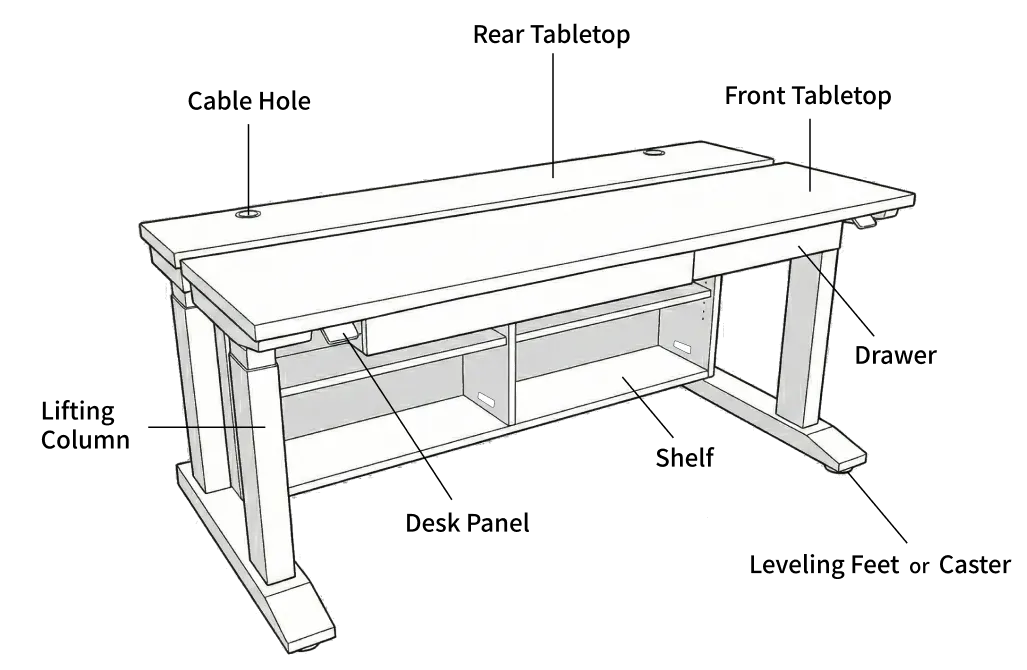
2-1. Structural Features of the KIDO Desk
The KIDO Desk has a unique “dual independent tabletop” structure in which two tabletops are raised and lowered electrically and independently of each other. A storage shelf is attached under the rear tabletop as one unit (the rear tabletop and the shelf form a single structure), and a drawer is attached under the front tabletop. This structure provides a large amount of storage, but compared with a typical height-adjustable desk (with one tabletop), it has more pinch points.
A typical electric height-adjustable desk has one hazard area, “between the underside of the tabletop and the floor”, but the KIDO Desk has 3 hazard areas.
2-2. The 3 Hazard Areas
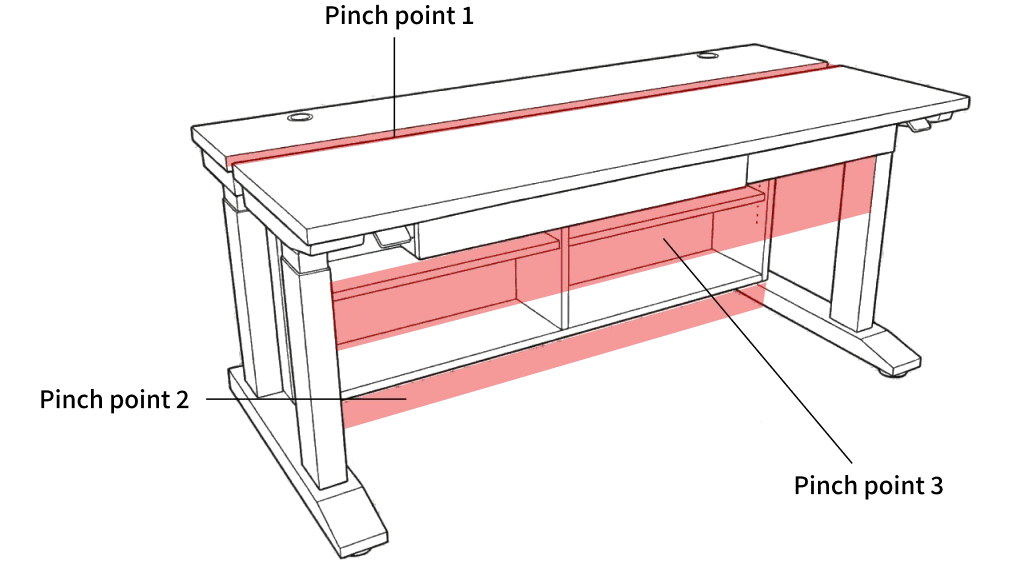
| Area | Location | Points requiring special attention |
|---|---|---|
| Pinch point 1 | Between the front tabletop and the rear tabletop (gap between the tabletops: approx. 2.5 cm (1 in)) | This gap is wide enough for a child’s fingers. It is most dangerous when the tabletops pass each other |
| Pinch point 2 | Between the underside of the storage shelf and the floor (the rear tabletop and the shelf are one unit and move down together) | Most dangerous when a child crawls under the desk |
| Pinch point 3 | Between the underside of the front tabletop (including the drawer) and the chair or the user’s legs | Your legs may be trapped if you lower the front tabletop while seated |
2-3. Which Operation Creates a Hazard in Which Area
| Operation | Hazardous areas |
|---|---|
| Lowering the front tabletop | Pinch point 1 (the front tabletop approaches the rear tabletop), pinch point 3 (the drawer approaches the chair and legs) |
| Raising the front tabletop | *Watch out for obstacles above |
| Lowering the rear tabletop | Pinch point 1 (the rear tabletop approaches the front tabletop), pinch point 2 (the shelf approaches the floor) |
| Raising the rear tabletop | *Watch out for obstacles above |
3. Preventing Pinching Accidents
Getting caught in a pinch point can cause serious injury such as broken bones.
3-1. Rules You Must Always Follow
- Never put any part of your body (hands, feet, fingers, head, face, etc.) into a pinch point while the desk is moving, or immediately before or after moving it.
- Do not crawl under the desk while it is moving.
- Do not stand or sit on the tabletops. Falling over or falling off can result in serious injury.
- Do not move the desk while objects are caught between the tabletops. The objects may break and fragments may be scattered.
3-2. Safety Checks Before Adjusting the Height
Make the following checks a habit before moving the desk.
- Check the surroundings — Are there any people or obstacles above, below or beside the desk?
- Check the pinch points — Is anything caught in any of the 3 pinch points?
- Watch the desk while it moves — Do not take your eyes off the desk while it is moving
- Stop immediately if anything is wrong — The desk stops immediately when you release the paddle
4. Safety of Children and Pets
Take particular care in households with small children or pets.
4-1. Why Children Need Special Attention
- Pinch point 1 (gap between the tabletops: approx. 2.5 cm (1 in)) is wide enough for a child’s fingers
- Children may crawl under the desk to play
- Touching the paddle of the desk panel starts the desk moving unintentionally
- Not only soft parts of a child’s body, but soft objects in general may not be detected by the PIEZO collision detection (see Section 6 for details)
4-2. Teaching Children About Safety
Tell children the following repeatedly:
- The desk is a “useful tool”, not a “toy”
- Do not crawl under the desk
- Do not put hands or fingers between the tabletops
- Do not climb onto the tabletops
- Do not play with the desk panel
4-3. Required Settings in Households with Children
Be sure to make the following two settings.
Setting 1: Enable the Key Lock
When the key lock is enabled, the paddle is disabled, preventing unintended operation by children.
How to set it (there are 3 ways):
- In the Desk Connect app (recommended — the easiest and most reliable way)
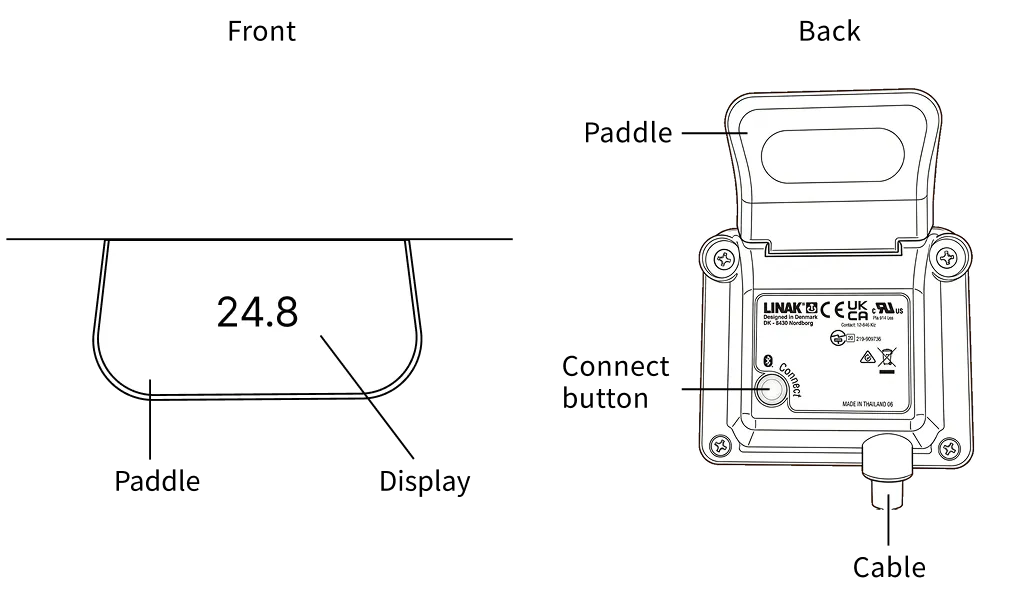
- In the desk panel settings menu (press and hold the Connect button and the paddle down for 3 seconds at the same time → set it in the menu)
- By double-tapping the desk panel for a simple lock/unlock
Note: After you unlock the key lock by double-tapping, the desk panel locks again automatically when the set timer (3, 6 or 10 seconds; default 10 seconds) has elapsed. The desk can be operated while the timer is running.
For details on the key lock, refer to the “Desk Panel Guide” and the “Desk Connect App Guide”.
Setting 2: Set a Height Limit (Lower Limit)
Setting a lower limit prevents a child’s legs from getting between the storage shelf and the floor (pinch point 2). Also set a lower limit for the front tabletop to keep enough space between the drawer and the chair or legs (pinch point 3).
How to set it:
- In the Desk Connect app (recommended)
- In the desk panel settings menu (LIMITS)
For details on height limits, refer to the “Desk Panel Guide” and the “Desk Connect App Guide”.
4-4. Precautions for Pets
- Pets (especially cats) may get under the desk or into the cabinet-type storage shelf.
- Always check that there are no pets around the desk before moving it.
- Use the key lock while pets are around.
5. Safe Height Adjustment Procedures
Always follow the correct procedure when adjusting the height.
5-1. Checks Before Operation
- Make sure there are no people or obstacles around the desk (above, below and at the sides)
- Make sure nothing is caught in any of the 3 pinch points
- Take care that drinks on the desk do not spill
- Setting height limits is recommended (especially if there are fixed objects such as shelves or window frames)
5-2. Precautions During Operation
- Do not leave the desk while it is moving
- If you notice anything unusual, release the paddle immediately — the desk stops immediately when you release it
- Each height adjustment takes from a few seconds to a little over ten seconds. Do not operate the desk continuously for more than 1 minute
5-3. Precautions When Using Automatic Drive
Automatic drive (automatic movement by double-tapping) is a convenient function, but failing to check for safety can lead to serious accidents.
- Automatic drive must first be enabled in the Desk Connect app (it is disabled by default).
- With automatic drive, double-tapping the paddle moves the desk automatically to the nearest favorite position
- The desk stops during the movement if you touch the paddle or if a collision is detected
- Always make sure it is safe around the desk before starting automatic drive
- Take particular care when using automatic drive in environments with children
6. Understanding Collision Detection (PIEZO) Correctly
PIEZO collision detection is a supplementary safety function. Never rely on this function when using the desk.
6-1. What Is PIEZO?
PIEZO is a piezoelectric collision detection sensor built into the LINAK DL12 lifting columns. When it detects a collision with an obstacle during movement, it stops the movement and reverses it slightly (moves in the opposite direction) to reduce the harm caused by pinching.
This product has 4 DL12 lifting columns (2 for the front tabletop, 2 for the rear tabletop), each with a built-in PIEZO sensor.
6-2. When PIEZO Does Not Work
In the following situations, PIEZO may not detect an obstacle, or may detect it late:
| Situation | Reason |
|---|---|
| Contact with soft objects (cushions, clothing, soft parts of the human body) | The change in pressure does not reach the detection threshold |
| Contact with an object at a very slow speed | The change in pressure is gradual |
| During initialization (reset) | Collision detection is completely disabled |
| Immediately after the desk starts moving (approx. 1 second) | Stabilization period of the sensor |
| Immediately before the desk stops (approx. 1 second) | Sensor sensitivity changes during deceleration |
| Moving down with a light load | The change in pressure is less likely to reach the detection threshold |
Note: An uneven load (weight concentrated on one side of a tabletop) also affects the PIEZO detection sensitivity and may cause unintended stopping and reversing. Distribute the load evenly on the tabletops.
6-3. Safety Level of PIEZO
The PIEZO collision detection function complies with EN 13849-1 (Safety of machinery — Safety-related parts of control systems) (SRP/CS Category B, Performance Level b). However, this does not guarantee personal safety.
6-4. Safety Measures That Do Not Rely on PIEZO
Regard PIEZO as the “last line of defense”. The main safety measures are:
- Visual check before operation (most important)
- Setting height limits (physically limiting the range of movement)
- Key lock (preventing unintended operation)
- Alerting people nearby (especially children and pets)
- PIEZO collision detection (supplementary last resort)
7. Setting Up and Using the Safety Features
The KIDO Desk has the following safety features. Set them up properly and make use of them.
7-1. Key Lock
| Item | Details |
|---|---|
| Purpose | Disables the paddle to prevent unintended or unauthorized operation |
| How to set | Desk Connect app (recommended) / desk panel settings menu / double-tap |
| Unlocking | Unlock in the app / double-tap the paddle (double-tap again within the set timer) |
| Timer | 3 seconds / 6 seconds / 10 seconds (default: 10 seconds) |
| Recommended for | Environments with children, when you are away, when cleaning |
7-2. Height Limits (Upper and Lower)
| Item | Details |
|---|---|
| Purpose | Limits the range of movement to prevent collisions with obstacles and pinching in the pinch points |
| How to set | Desk Connect app / desk panel settings menu (LIMITS) |
| Upper limit | Prevents collisions with shelves, window frames, lights, etc. above the tabletop |
| Lower limit | Rear: prevents pinching between the storage shelf and the floor; front: prevents pinching between the drawer and the chair or legs (especially important) |
| Recommendation | Always set both the upper and the lower limit |
7-3. Favorite Positions
| Item | Details |
|---|---|
| Purpose | Saves frequently used heights so you can move to them quickly and accurately |
| Maximum number | 4 (per desk panel) |
| Safety benefit | Eliminates manual adjustment each time, reducing operating time and operating errors |
7-4. Reminders
| Item | Details |
|---|---|
| Purpose | Prompts you to switch between sitting and standing |
| How to set | Desk Connect app only |
| Safety benefit | Reduces the strain on the body caused by staying in the same posture for a long time |
8. Electrical Safety
Incorrect handling of electrical parts can cause electric shock or fire.
8-1. Power Supply
- Connect the power plug to an outlet where it can be unplugged immediately in an emergency. Even if you place a power strip on the cable-management hub, always keep the plug in the wall outlet within reach.
- Use the power supply for your region: AC 230 V, 50 Hz (Europe/Australia), AC 120 V, 60 Hz (North America) or AC 100 V, 50/60 Hz (Japan). The control box differs by region — check the rating label on your control box.
| Region | Power supply | Control box (LINAK CBD6S) certification |
|---|---|---|
| Europe / Australia | AC 230 V, 50 Hz | EN 60335-1, EN 13849-1 |
| North America | AC 120 V, 60 Hz | UL 962 |
| Japan | AC 100 V, 50/60 Hz | PSE |
*These certifications apply to the control box (a component), not to the desk as a whole.
- Standby power consumption is 0.1 W.
8-2. Power Cord and Plug
- Do not damage the power cord, bend it forcibly or place heavy objects on it. This may cause electric shock or fire.
- If the power cord or plug is damaged, stop using the product immediately.
- Do not touch the power plug with wet hands.
8-3. Control Box Safety
- This product has 2 control boxes, one for the front tabletop and one for the rear tabletop.
- If you notice an unusual sound or smell from a control box, unplug the power plug immediately, stop using the product and contact Shimizu Zaimokuten.
- Do not cover the control boxes with insulating material or cables. Heat cannot dissipate, which can cause failure.
8-4. Electrical Safety and the Environment
- This product is for indoor use only. Do not use it outdoors or in humid locations.
- If you hear thunder, unplug the power plug from the outlet.
- Always unplug the power plug from the outlet before moving the product.
8-5. Using a Power Strip
- If you place a power strip on the cable-management hub, use a power strip certified for use in your country (e.g. CE, UL).
- Make sure that the total power consumption of all connected devices does not exceed the capacity of the power strip. Exceeding the capacity can cause overheating and fire.
9. Load and Duty Cycle Limits
9-1. Maximum Load
Exceeding the maximum load can cause motor failure or damage to the product.
| Part | Maximum load |
|---|---|
| Front tabletop | 80 kg (176 lb) or less |
| Rear tabletop | 80 kg (176 lb) or less |
| Entire desk | Max. 160 kg (353 lb) |
- Distribute the load evenly on the tabletops. An uneven load (weight concentrated on one side of a tabletop) can cause motor wear and malfunctions. It also affects the sensitivity of collision detection (PIEZO), which may cause unintended stopping and reversing.
- Do not use the desk to lift people.
- Do not stand or sit on the desk while it is moving.
9-2. Duty Cycle (Limit on Continuous Use)
Continuous use beyond the duty cycle can cause the motors to overheat and fail.
| Item | Value |
|---|---|
| Maximum continuous operation time | 1 minute |
| Required pause | At least 9 minutes |
| Duty cycle | 10% |
*These values are based on the specifications of the LINAK DL12 lifting column.
In normal use, switching between sitting and standing (each movement takes from a few seconds to a little over ten seconds), this limit is rarely exceeded. However, take care when performing continuous lifting tests or repeated operations.
10. Safe Installation Environment
10-1. Installation Location Requirements
- Install the desk on a flat, stable floor.
- Do not bolt the desk legs to the floor. Fixing them prevents free movement during height adjustment and can cause serious damage to the frame.
- Keep enough free space around the desk (above, below and at the sides). Make sure there is nothing that could obstruct the movement, such as shelves, cabinets or window frames.
10-2. Environmental Conditions
| Item | Condition |
|---|---|
| Operating temperature range | 10–40°C (50–104°F) |
| Operating humidity range | 20–80% (non-condensing) |
| Location | Indoor use only |
- Locations exposed to direct sunlight for long periods can cause the wood to discolor or warp.
- Locations directly in the airflow of an air conditioner can cause the wood to crack or warp.
10-3. Moving the Desk
To move the desk, follow the steps below:
- Remove everything from the tabletops
- Unplug the power plug from the outlet
- Lowering both tabletops to their lowest positions makes the desk more stable
- Carry the desk with at least 2 people
- Choose a flat, stable floor for the new location
- After setting up, connect the power and initialize the desk with each desk panel (always follow the safety procedure in Section 12)
11. Cable Safety
When working on the cables, do not operate the desk while your hands or body are in any of the 3 pinch points.
11-1. Safety Measures When Working on the Cables
- Before working on the cables, enable the key lock or unplug the power plug.
- Warn people nearby so that no one else operates the desk while you are working on the cables.
11-2. Cable Routing
- Leave enough slack so that cables are not pulled or pinched when the desk moves.
- The minimum bending radius of the motor cables is 30 mm (1.2 in). Bending them forcibly will damage the cables.
- Secure the cables with clips or cable guides so that they cannot get caught in the moving parts of the desk (such as the lifting columns).
- Take particular care that cables do not get into the gap between the tabletops (approx. 2.5 cm (1 in)).
11-3. Power Safety
- Always keep the power plug in the wall outlet within immediate reach in an emergency.
- Do not damage the power cord, bend it forcibly or place heavy objects on it.
For details on cabling, refer to the “Cable Management Guide”.
12. Safe Initialization
PIEZO collision detection is completely disabled during initialization.
12-1. When Initialization Is Required
- When you switch on the power for the first time
- After a power failure or after the desk has been unplugged for a long time
- After moving the desk
12-2. Safety Procedure for Initialization
- Make sure there are no people, pets or obstacles under or around the desk before you start.
- Do not take your eyes off the desk during initialization.
- Initialize once with each desk panel (for the front tabletop and for the rear tabletop).
12-3. Initialization Procedure (Overview)
- Press and hold the paddle “down”.
- Release it when the tabletop reaches its lowest position.
- Within 10 seconds, press and hold the paddle “down” again.
- The tabletop moves down slightly, then moves up approx. 5 mm (0.2 in) and stops. Never release the paddle until the desk has completely stopped moving.
- Make sure the desk has stopped completely, then release the paddle.
- Repeat the same procedure with the other desk panel.
For the detailed initialization procedure, refer to the “Quick Start Guide”, the “Desk Panel Guide” or the “Troubleshooting” guide.
13. Safety During Maintenance
13-1. Caring for the Tabletops
If you use oil to maintain an oil finish, cloths soaked with oil can ignite spontaneously. Immediately after use, soak them in water and dispose of them in a sealable bag while they are still soaked in water. Do not leave them crumpled up or let them dry.
For details on caring for the tabletops, refer to the “Wood Care Guide”.
13-2. Cleaning the Desk Panel
- Wipe it with a soft, damp cloth.
- Do not spray cleaning agents directly onto it. Liquid getting inside can cause failure.
- Do not use the following:
- Bleach or chlorine-based cleaners
- Strongly acidic or strongly alkaline cleaning agents (outside the pH range 6–8)
- Hand sanitizer gel
13-3. Do Not Disassemble
Never disassemble the control boxes, the desk panels or the lifting columns.
- This may cause failure or electric shock.
- Disassembly voids the warranty (warranty period: 1 year for electrical parts, 2 years for mechanical parts, 3 years for the structure).
- If repairs are needed, contact Shimizu Zaimokuten.
14. What to Do in an Emergency
14-1. If You Notice Anything Unusual
If any of the following symptoms occur, stop using the product immediately and unplug the power plug from the outlet.
| Symptom | Possible risk |
|---|---|
| Unusual sound from a control box | Failure of internal parts |
| Unusual smell from a control box | Overheating or burnout of the circuit |
| Visible smoke | Sign of a fire |
| A tabletop moves uncontrollably | Failure of the control system |
| The power cord is abnormally hot | Overcurrent or short circuit |
| Strong vibration while the desk is moving | Failure of the mechanism |
Reference: The normal operating noise is 55 dB(A) or less (about the level of ambient sound in a quiet office). If the noise is significantly louder than this, something may be wrong.
14-2. How to Stop in an Emergency
- Release the paddle — the desk stops immediately
- Unplug the power plug — all movement stops
14-3. Power Failure
- During a power failure, the desk cannot be moved, but the tabletops stay in their current positions.
- You can resume operation when the power is restored.
- After a long power failure, initialization may need to be performed again (see Section 12).
14-4. Contacting Us
If a problem occurs, unplug the power plug and contact Shimizu Zaimokuten (see Section 17).
15. List of Prohibited Actions
The following actions are prohibited. They can cause serious injury or product failure.
| Prohibited action | Hazard level |
|---|---|
| Putting any part of your body into a pinch point (between the tabletops, between the shelf and the floor, between the underside of the front tabletop and the chair) while the desk is moving | DANGER |
| Allowing children to operate the desk (without supervision by a parent or guardian) | DANGER |
| Moving the desk while children or pets are near it | DANGER |
| Crawling under the desk | DANGER |
| Standing or sitting on the tabletops | DANGER |
| Moving the desk while objects are caught between the tabletops | DANGER |
| Touching the power plug with wet hands | WARNING |
| Continuing to use a damaged power cord | WARNING |
| Using the desk outdoors or in a humid environment | WARNING |
| Placing loads that exceed the maximum load (80 kg (176 lb) per tabletop) | CAUTION |
| Using the desk to lift people | CAUTION |
| Continuous use beyond the duty cycle (1 minute of operation / 9 minutes of pause) | CAUTION |
| Bolting the desk legs to the floor | NOTICE |
| Disassembling the product (control boxes, desk panels, lifting columns) | NOTICE |
| Covering the control boxes with insulating material or cables | NOTICE |
16. Safety Checklist
Initial Installation
- I have read the “Safety Instructions”
- I have read this Safety Guide
- The installation location is flat and stable
- There is enough free space around the desk
- The power plug can be unplugged immediately in an emergency
- I have completed initialization with each desk panel
- I have set the height limits (upper and lower)
- I understand how to use the key lock
- I have confirmed that the desk stops when I release the paddle
Households with Children (in Addition to the Above)
- I have enabled the key lock
- I have set the height limit (lower limit) (rear: safe space between the shelf and the floor; front: safe space between the drawer and the chair)
- I have explained the hazards of the desk to my children
- I have checked that the desk panels are out of children’s reach
Daily Use
- I make a habit of checking that it is safe around the desk before moving it
- I do not take my eyes off the desk while it is moving
- I release the paddle immediately if I notice anything unusual
- I regularly check the power cord for damage
17. Contact
For questions about product safety, to report a problem or to request a repair, contact Shimizu Zaimokuten.
We also act as your point of contact for all repairs and replacements of LINAK components (control boxes, desk panels, lifting columns). You do not need to contact LINAK directly.
- Official website: https://shimizuzaimokuten.com/
- Email: [email protected]
Disclaimer
Shimizu Zaimokuten accepts no liability for accidents, injuries, or damage to the product or other property resulting from failure to observe the prohibitions and precautions in this document.
This section does not limit your rights under applicable product liability laws.
Related Documents
| Document | Contents |
|---|---|
| Safety Instructions | Safety instructions included with the product (must read) |
| Quick Start Guide | Initial setup and basic operation |
| Warranty | Warranty coverage and conditions |
| User Manual | Comprehensive operating instructions |
| Desk Panel Guide | How to operate the DPI1C |
| Desk Connect App Guide | Desk Connect app |
| Troubleshooting | Solutions to problems |
| FAQ | Frequently asked questions |
| Cable Management Guide | How to organize cables |
| Wood Care Guide | How to care for the wood |
The contents of this document are subject to change without notice for product improvement. Please check the official website for the latest version.