KIDO Desk User Manual
Electric Height-Adjustable Desk Shimizu Zaimokuten
Read this manual carefully before use. This is the official user manual for the KIDO Desk and contains all the information you need to use it safely and comfortably. Read the contents carefully and use the product correctly. After reading, keep this manual in a safe place for future reference.
Contents
- Safety Precautions
- Parts and Functions
- Product Specifications
- Installation and Initial Setup
- Basic Operation
- Advanced Desk Panel (DPI1C) Operation
- Desk Connect App
- Safety Features
- Cable Management
- Caring for Natural Wood
- Troubleshooting
- Warranty, Repair and Disposal
- Specifications Summary
- Contact
1. Safety Precautions
1-1. Meaning of Safety Signal Words
| Signal word | Meaning |
|---|---|
| DANGER | A hazardous situation which, if not avoided, is highly likely to result in death or serious injury |
| WARNING | A hazardous situation which, if not avoided, could result in death or serious injury |
| CAUTION | A situation which, if not avoided, could result in minor injury |
| NOTICE | A situation which, if not avoided, could result in damage to or malfunction of the product |
1-2. DANGER: Pinch Hazards
This product has a special design in which two tabletops move up and down independently under electric power. There are three locations where trapping fingers, hands, arms or legs is extremely dangerous and can cause serious injury such as bone fractures.
| Pinch point | Description |
|---|---|
| Pinch point 1 | Between the front tabletop and the rear tabletop (the gap between the tabletops, approx. 2.5 cm (1 in)). This gap is wide enough for a child’s fingers. |
| Pinch point 2 | Between the underside of the storage shelf and the floor (the rear tabletop and the shelf are one unit and move down together) |
| Pinch point 3 | Between the underside of the front tabletop (including the drawers) and a chair or the user’s legs (when the front tabletop moves down) |
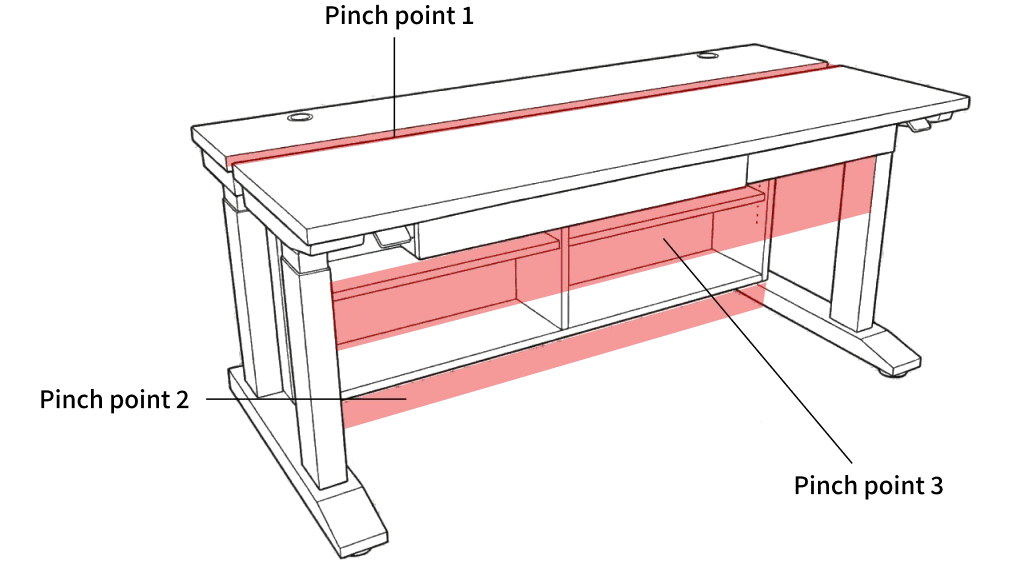
- Never place any part of your body in the pinch points above while the desk is moving, or immediately before or after moving it.
- Do not move the desk with objects caught between the tabletops. The objects may break and fragments may scatter.
- Do not crawl under the desk while it is moving.
- Do not stand or sit on the tabletops.
1-3. DANGER: Children and Pets
- Never allow children to operate the desk. If a child must operate it, make sure they fully understand the hazards of the product, and always supervise them.
- Do not move the desk when children or pets are near it.
- Remind children repeatedly that the desk is “a useful tool” and “not a toy”.
- Supervise children to make sure they do not do any of the following dangerous things:
- Crawl under the desk
- Put their hands or fingers between the tabletops
- Stand or sit on the tabletops
- Play with the desk panel
- Always enable the key lock function and set height limits (upper and lower).
1-4. WARNING: When Moving the Desk
- Make sure there are no people or obstacles around the desk before operating it.
- Stay at the desk while it is moving. If you notice anything unusual, release the paddle immediately.
- We strongly recommend using the height limit function to prevent collisions with obstacles.
1-5. WARNING: Limitations of Collision Detection (PIEZO)
This product is equipped with the LINAK PIEZO collision detection system, but it is only a supplementary safety function.
Collision detection may not work in the following cases:
- On contact with soft objects (cushions, clothing, soft parts of the human body, etc.)
- On contact at very low speed
- During initialization (reset) (collision detection is completely disabled)
- Immediately after the desk starts moving (approx. 1 second) and immediately before it stops (approx. 1 second)
- When moving down with a light load
1-6. WARNING: Electrical Safety
- Connect the power plug to an outlet where it can be unplugged immediately in an emergency.
- Do not damage the power cord, bend it forcibly or place heavy objects on it.
- Stop using the product immediately if the power cord or plug is damaged.
- Do not touch the power plug with wet hands.
- If you notice unusual noises or smells from a control box (this product has two), unplug the power plug immediately and stop using the product.
- Always unplug the power plug before moving the product.
- Unplug the power plug from the outlet when a thunderstorm begins.
- This product is for indoor use only. Operating temperature: 10–40°C (50–104°F). Operating humidity: 20–80% (non-condensing).
1-7. CAUTION: Load and Continuous Use
- Distribute the load evenly across the tabletops. An uneven load can cause motor wear and false triggering of collision detection.
- Maximum load: front tabletop 80 kg (176 lb) or less, rear tabletop 80 kg (176 lb) or less (160 kg (353 lb) maximum in total).
- Duty cycle: after a maximum of 1 minute of continuous operation, a pause of at least 9 minutes is required (10% duty cycle). This value is based on the specifications of the DL12 lifting columns.
- Do not use the desk to lift people. Do not stand on the tabletops while the desk is moving.
1-8. NOTICE: Handling the Product
- Do not cover the control boxes with insulating material.
- Do not disassemble the product (control boxes, desk panels, lifting columns). Disassembly voids the warranty.
- Clean the desk panels with a soft, damp cloth. Do not spray cleaning agents directly onto them. Do not use cleaning agents outside the pH range 6–8, bleach, chlorine-based cleaners or hand sanitizer gel.
- If the product has visible damage, do not install or use it. Contact Shimizu Zaimokuten.
1-9. Prohibited Actions
| Prohibited actions |
|---|
| Placing any part of your body in a pinch point (between the tabletops, between the shelf and the floor, between the underside of the front tabletop and a chair) while the desk is moving |
| Allowing children to operate the desk (without adult supervision) |
| Moving the desk when children or pets are near it |
| Crawling under the desk |
| Standing or sitting on the tabletops |
| Loading more than the maximum load (80 kg (176 lb) per tabletop) |
| Using the desk to lift people |
| Continuous operation beyond the duty cycle (1 minute on / 9 minutes off) |
| Using the desk outdoors or in humid environments |
| Disassembling the product |
| Continuing to use a damaged power cord |
| Bolting the desk legs to the floor |
1-10. If Something Goes Wrong
If you notice anything unusual with the product, stop using it immediately and unplug the power plug from the outlet. Then contact us using the details in Section 14.
2. Parts and Functions
2-1. Desk
| Part | Description |
|---|---|
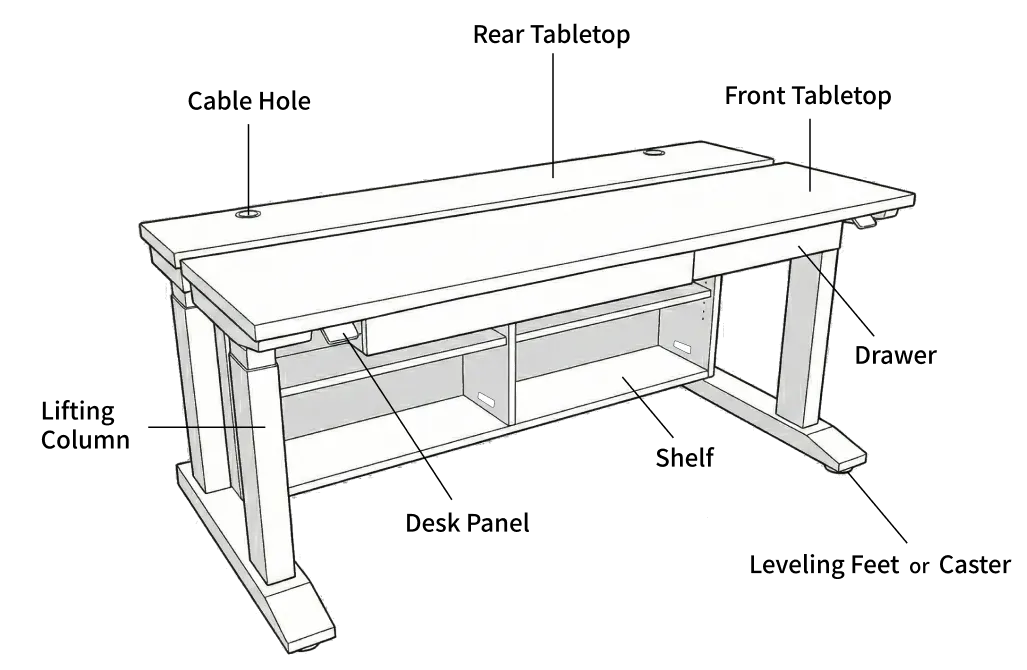
| Front tabletop | The tabletop nearest the user and the main work surface. Moves up and down independently |
| Rear tabletop | The tabletop at the back of the desk. Raising it reveals the shelf. Moves up and down independently |
| Storage shelf | A shelf under the rear tabletop. Can hold a PC tower or other equipment |
| Drawers | Two drawers at the front. For stationery and other items |
| Wooden frame | The wooden legs and frame that support the desk structure |
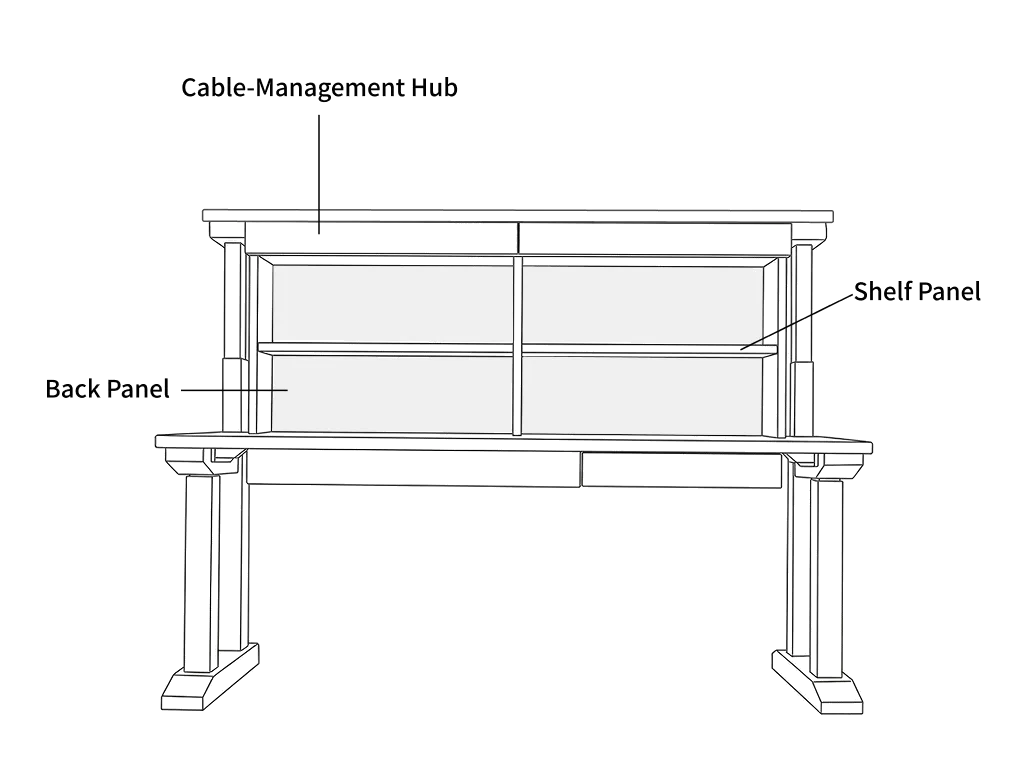
| Cable-management hub | A cable storage space behind the cable cover panel |
| Cable cover panel | A panel covering the cable-management hub. Open it to route cables |
| Cable holes | Holes in the tabletops for cables. Route cables through them to the hub |
| Gap between the tabletops | A safety gap of approx. 2.5 cm (1 in) between the front tabletop and the rear tabletop |
2-2. Electric Lifting Units (LINAK)
| Component | Qty | Description |
|---|---|---|
| Lifting column (DL12) | 4 | Lifting columns that raise and lower the tabletops. Two per tabletop |
| Control box (CBD6S) | 2 | Controls the lifting system. One for the front tabletop and one for the rear tabletop |
| Desk panel (DPI1C) | 2 | Paddle-type desk panel with a display. One for the front tabletop and one for the rear tabletop |
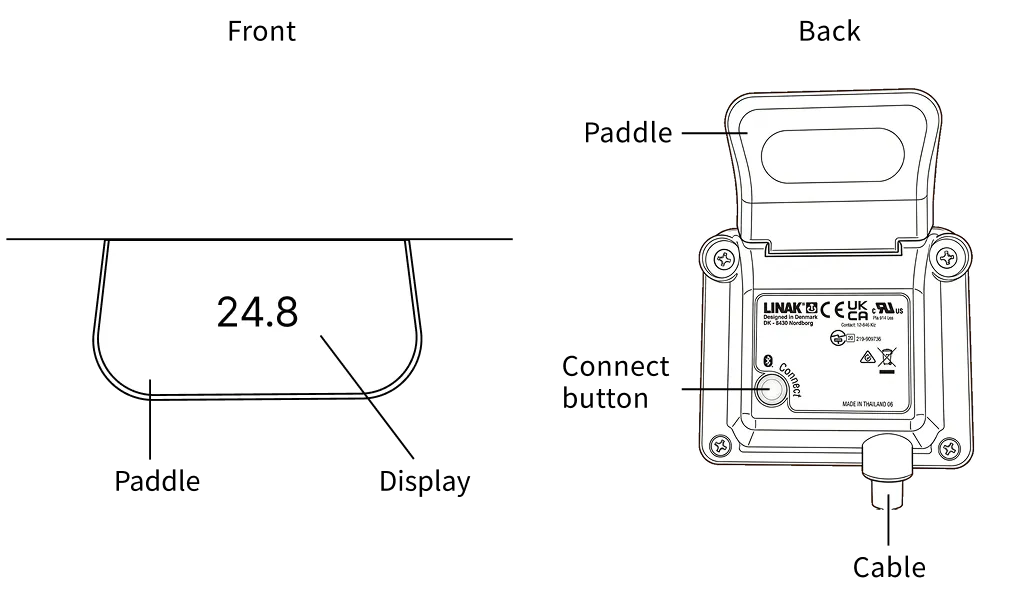
2-3. Desk Panel (DPI1C) Parts
| Part | Description |
|---|---|
| Paddle | The main control. Tilt it up or down to move the desk |
| Display | Shows the current tabletop height, the settings menu and various icons |
| Connect button | A button on the underside of the desk panel. Used for pairing and settings mode |
3. Product Specifications
3-1. Standard Specifications
| Item | Specification |
|---|---|
| Product name | KIDO Desk |
| Standard size | D 74 cm × W 160 cm (D 29.1 in × W 63 in) |
| Tabletop material | Monkeypod or white ash |
| Finish | Oil finish or urethane finish |
| Frame | Natural wood |
| Lifting system | Electric (LINAK DL12 × 4) |
| Control system | LINAK CBD6S × 2 |
| Operation | LINAK DPI1C × 2 + Desk Connect app |
| Collision detection | LINAK PIEZO collision detection system |
| Maximum load | Front tabletop 80 kg (176 lb), rear tabletop 80 kg (176 lb) (160 kg (353 lb) maximum in total) |
| Thrust | Up to 700 N per column (approx. 70 kg (154 lb)) |
| Power supply | AC 230 V 50 Hz (Europe/Australia) / AC 120 V 60 Hz (North America) / AC 100 V 50/60 Hz (Japan) — the control box differs by region; check the rating label on your control box |
| Duty cycle | 10% (max. 1 minute continuous operation, 9 minutes pause) |
| Operating noise | 55 dB(A) or less |
| Standby power | 0.1 W |
| Connectivity | Bluetooth Low Energy (built into DPI1C) |
| Compatible app | Desk Connect (iOS / Android) |
3-2. Environmental Conditions
| Condition | In use | Storage and transport |
|---|---|---|
| Temperature | 10–40°C (50–104°F) | -10 to +50°C (14–122°F) |
| Humidity | 20–80% (non-condensing) | 20–80% (non-condensing) |
4. Installation and Initial Setup
4-1. Unpacking and Assembly
Assemble the desk yourself by following the included Assembly Instructions exactly. The Assembly Instructions are also available as a PDF on the Manuals (PDF) page.
4-2. Initial Setup by the Customer
Once the desk is assembled and in place, please carry out the following steps yourself.
- Connect the power (see Quick Start Guide STEP 1 for details)
- Initialize the lifting system (see STEP 2)
- Calibrate the height display (see STEP 3-2)
- Set height limits (see STEP 4)
- Install the shelf panel (see Section 4-3)
- Pair the Desk Connect app (see STEP 5)
- Connect cables for your equipment (see STEP 7)
4-3. Installing the Shelf Panel
Attach the shelf panel to the storage shelf. The shelf panel is secured with Lamello Divario P-18 connectors.
About the Divario P-18 Connector
The Divario P-18 is a self-clamping connector that holds the shelf panel firmly in place while remaining invisible from the outside. The locking parts (the receiving fittings) are already attached to the shelf panel. You attach the anchor parts (the insert fittings) to the sides of the shelf, then slide the shelf panel in to secure it.
What You Need
- The supplied anchor parts (Divario P-18)
- A hammer or rubber mallet (useful, but you can also push the parts in by hand)
Installation Procedure
- Decide on the shelf panel height. The sides of the storage shelf have holes (8 mm (5/16 in) in diameter) evenly spaced from top to bottom. Choose the holes at the height you want.
- Attach the anchor parts. Push the anchor parts into the holes at the chosen height. Tap them lightly with a hammer to seat them firmly. Use holes at the same height on the left and right sides.
- Slide the shelf panel into place. Align the locking parts on the shelf panel (already attached) with the anchor parts and slide the shelf panel in sideways. Push it in while tapping lightly with the palm of your hand until it clicks into place.
- Check that it is secure. Make sure the shelf panel is level and does not wobble.
Tip: You can change the shelf panel height later. Pull the shelf panel out toward you and move the anchor parts to other holes.
Why the shelf panel must be secured: If the shelf panel simply rests on dowels or similar supports, it may lift up together with its contents if an object gets caught between the front and rear tabletops while the desk is moving. Items on the shelf could fall, and collision detection (PIEZO) may not work correctly. Securing the board with Divario P-18 connectors ensures that collision detection responds reliably to a pinching incident and that the desk stops and reverses. Always use the shelf panel secured with the P-18 connectors.
4-4. Initializing the Lifting System
The lifting system must be initialized after the power is connected for the first time or after the power has been disconnected for a long period.
Collision detection is completely disabled during initialization. Make sure there are no people, pets or obstacles under or around the desk.
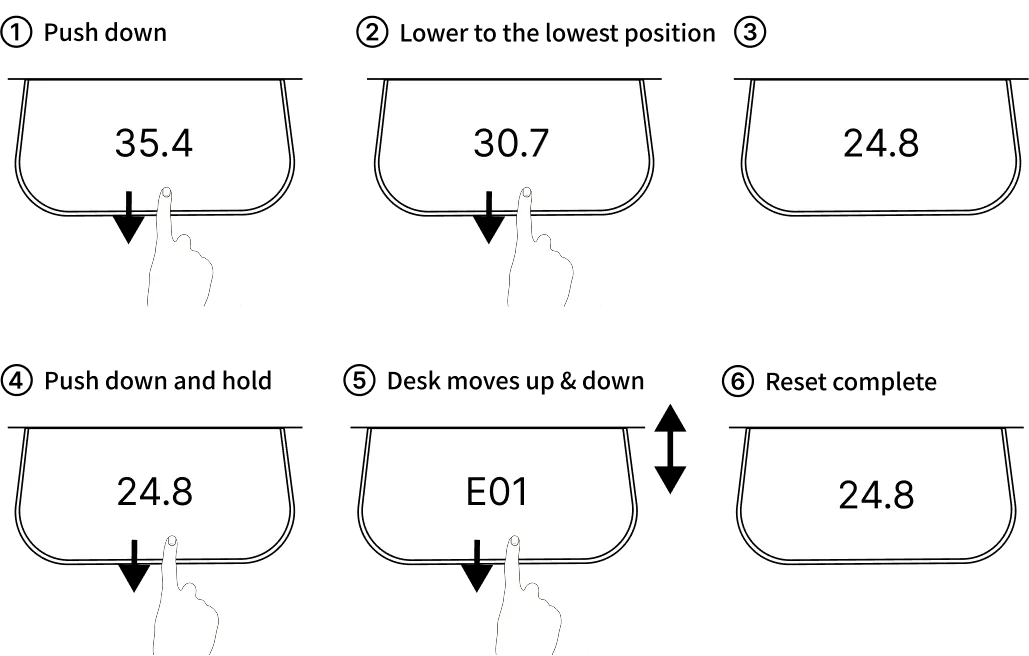
Procedure (perform once on each desk panel, front and rear, for a total of two times):
- Tilt the desk panel paddle “down” and hold it.
- Keep holding until the tabletop has moved all the way down to its lowest position.
- When it reaches the lowest position, release the paddle.
- Within 10 seconds, tilt the paddle “down” again and hold it.
- The tabletop moves down a little further, then moves up approx. 5 mm (0.2 in) and stops.
- Do not release the paddle until all movement has completely stopped.
If you release the paddle partway through, initialization is interrupted. Start again from the beginning.
4-5. Notes on the Installation Location
- Install the desk on a flat, stable floor.
- Do not bolt the desk legs to the floor. Fixing them prevents free movement during height adjustment and may seriously damage the frame in the event of a malfunction.
- Installing the desk in long periods of direct sunlight or in the direct airflow of an air conditioner can cause the wood to warp or crack.
- Keep enough free space around the desk (above, below and at the sides).
5. Basic Operation
5-1. Raising and Lowering the Tabletops
| Action | How |
|---|---|
| Raise the tabletop | Tilt the paddle up and hold it |
| Lower the tabletop | Tilt the paddle down and hold it |
| Stop | Release the paddle |
- Each desk panel operates only its own tabletop (one for the front tabletop and one for the rear tabletop).
- When you release the paddle, the tabletop stops immediately at that position (soft stop function).
- The display shows the current tabletop height in real time.
5-2. Moving Automatically to a Favorite Position
When favorite positions are saved and automatic drive is enabled:
- Double-tap the paddle up or down to move automatically to the nearest favorite position.
- The desk stops if you touch the paddle or close the app during automatic movement.
5-3. Soft Start and Stop
LINAK lifting units come with soft start and stop as standard. The desk accelerates and decelerates smoothly when it starts and stops moving, reducing the risk of spilling drinks on the tabletop.
6. Advanced Desk Panel (DPI1C) Operation
6-1. Entering Settings Mode
- Press the Connect button (on the underside of the desk panel) and at the same time tilt the paddle down for 3 seconds.
- An icon appears at the top left of the display and settings mode starts.
- Tilt the paddle up or down to scroll through the menu.
- Press the Connect button to select a menu item.
Settings mode ends automatically if there is no input for 30 seconds.
6-2. Settings Menu
| Menu | Function |
|---|---|
| HEIGHT | Calibrates the height shown on the display to the actual height |
| UNITS | Changes the height display unit (CM / MM / INCH) |
| FAV. POS. | Saves and deletes favorite positions |
| LIMITS | Sets the upper and lower limits of the height range |
| RESTORE | Restores factory settings |
| EXIT | Exits settings mode |
6-3. Calibrating the Height Display (HEIGHT)
- Measure the actual height from the floor to the top of the tabletop with a tape measure or similar.
- In settings mode, select “HEIGHT” and press the Connect button.
- Tilt the paddle up or down to set the value to the measured height.
- Press the Connect button to save.
6-4. Changing Units (UNITS)
- In settings mode, select “UNITS” and press the Connect button.
- Tilt the paddle to switch between “CM”, “MM” and “INCH”.
- Press the Connect button to save.
When the desk panel is connected to the Desk Connect app, the unit setting in the app takes priority.
6-5. Setting Favorite Positions (FAV. POS.)
To save:
- In settings mode, select “FAV. POS.” and press the Connect button.
- Tilt the paddle to select a memory slot (favorite 1–4) and press the Connect button.
- Use the paddle to move the desk to the height you want.
- Press the Connect button to select the height, then press it again to save.
To delete all:
- In the favorites menu, select “CLR FAV.” and press the Connect button.
- Press the Connect button again to confirm deletion of all favorite positions.
6-6. Setting Height Limits (LIMITS)
To set the lower or upper limit:
- In settings mode, select “LIMITS” and press the Connect button.
- Tilt the paddle to select “LOWER” (lower limit) or “UPPER” (upper limit) and press the Connect button.
- Use the paddle to move the desk to the desired height.
- Press the Connect button to select the height, then press it again to save.
To clear the limits:
- In the limits menu, select “CLEAR LIM.” and press the Connect button.
- Press the Connect button again to confirm clearing all limits.
6-7. Restoring Factory Settings (RESTORE)
- In settings mode, select “RESTORE” and press the Connect button.
- Press the Connect button again to confirm the restore.
Restoring resets favorite positions, limit settings, unit settings and all other settings to their default values.
6-8. Display Icons
| Icon | Meaning |
|---|---|
| Numbers | Current tabletop height |
| Settings icon (top left) | Settings mode is active |
| Bluetooth icon | Pairing mode is active (the desk ID is also shown) |
| Key lock icon | Key lock is enabled |
| Bell icon | Reminder notification (time to stand up) |
7. Desk Connect App
7-1. Overview
The Desk Connect app is a free smartphone app provided by LINAK. It connects to the DPI1C desk panel via Bluetooth Low Energy (BLE) and lets you use advanced settings and functions.
- Supported devices: iOS / Android
- Download: search for “Desk Connect” in the App Store or Google Play Store
7-2. First-Time Pairing
- Install and open the app, and allow Bluetooth access.
- Select your language and accept the terms of use.
- Press the Connect button on the underside of the desk panel for 2 seconds to enter pairing mode.
- Tap “THIS IS MY DEVICE” in the app and select the desk ID shown.
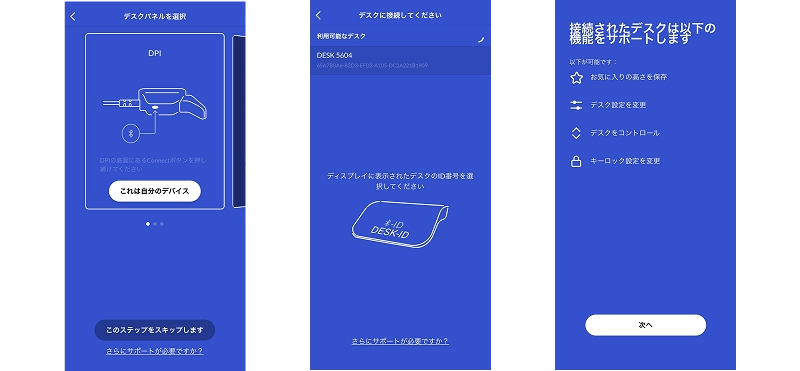
This product has two desk panels, so repeat the steps above for each desk panel. Connect the second and any further desk panels via “My desks” → “CONNECT NEW DESK”. On Android devices, location (GPS) must be enabled.
7-3. App Screens
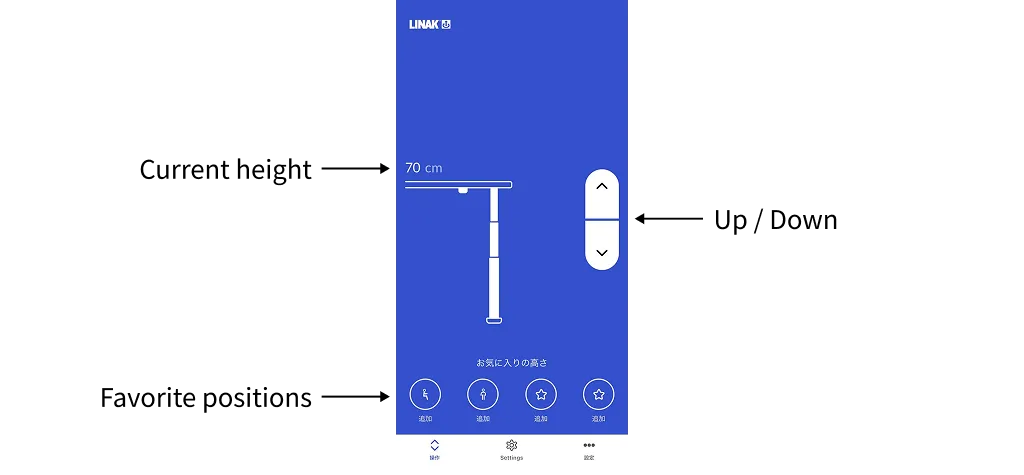
| Screen | Functions |
|---|---|
| Control | Up/down control, recalling favorite positions, current height display |
| Settings | Favorite positions, key lock, My desks, automatic drive, units, reminders |
| More | Language, dark mode, support, terms of use, privacy policy |
7-4. Main App Functions
Favorite Positions (up to 4)
- Select “Settings” → “Favourite positions”.
- Use the desk panel to move the desk to the height you want.
- Select the sitting, standing or star icon and press “SAVE”.
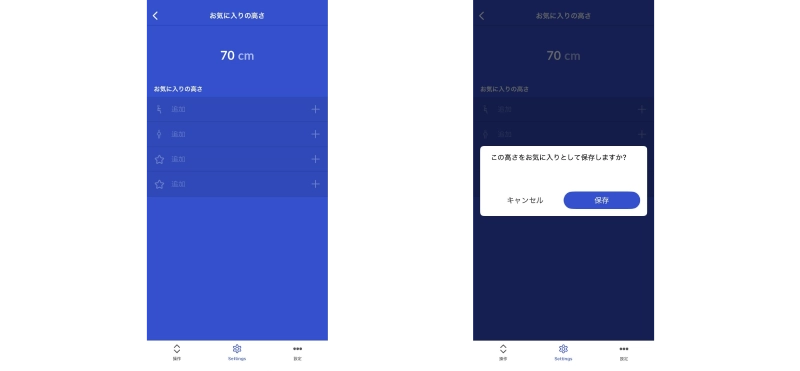
To change a favorite position, delete it first and then set it again.
Automatic Drive
- Select “Settings” → “Automatic drive”.
- Turn the toggle on and accept the terms of use.
- When enabled, double-tap the paddle to move automatically to a favorite position.
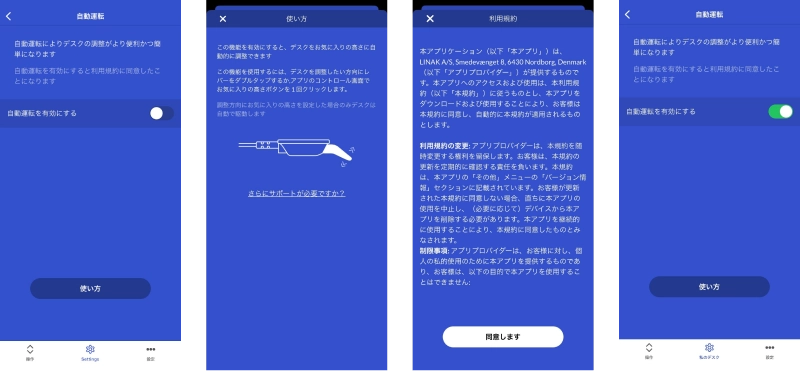
The desk stops if you touch the paddle or close the app during automatic drive.
Key Lock
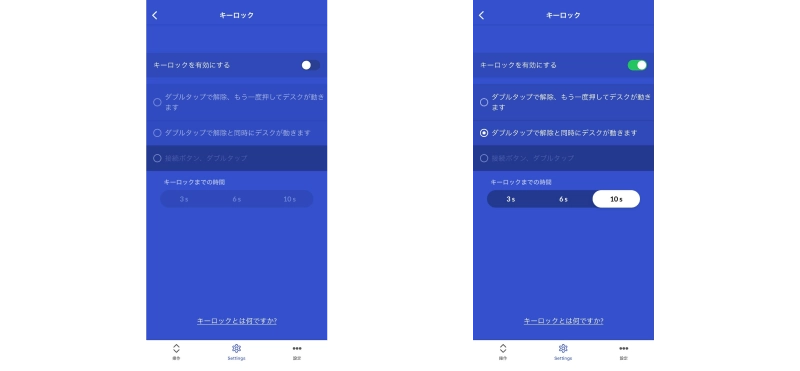
- Select “Settings” → “Keylock”.
- Turn the toggle on.
- Select an unlock method:
- Double tap: Double-tap the paddle to unlock, then tilt it to operate
- Double tap, second press to drive: Double-tap to unlock and start moving at the same time
- Connect button, double tap: Press the Connect button, then double-tap
- Select how long it takes for the key lock to activate (3 / 6 / 10 seconds).
Reminders
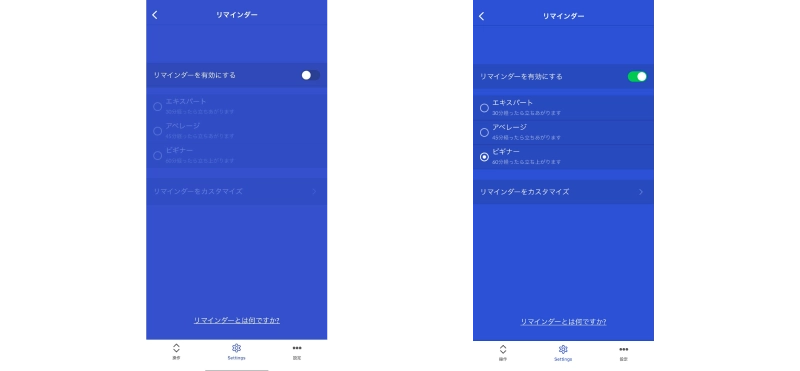
- Select “Settings” → “Reminders”.
- Turn the toggle on.
- Select a preset or custom reminder:
- Beginner: Reminds you after 60 minutes of sitting
- Average: Reminds you after 45 minutes of sitting
- Expert: Reminds you after 30 minutes of sitting
- Custom: Set any interval from 1 to 180 minutes in “Customize reminder”
Height Limits
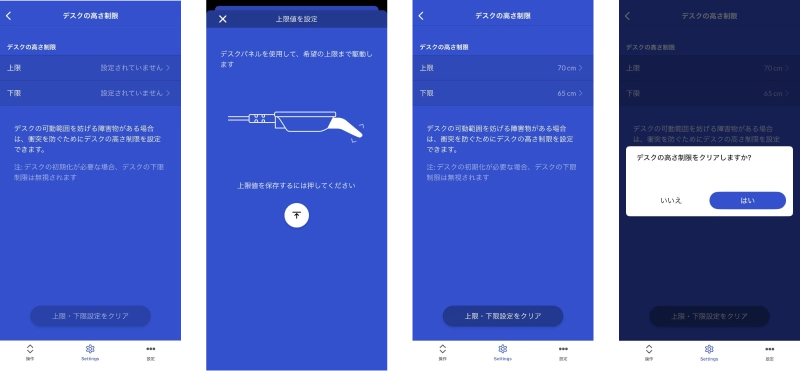
- Tap the gear icon on the “Control” screen and select “Desk height limits”.
- Select “Upper limit” or “Lower limit”.
- Use the desk panel to move the desk to the desired height, then press the icon to save.
Changing the Desk Name
- Tap the gear icon on the “Control” screen and select “Desk name”.
- Enter a new desk name (1–10 characters) and press “SAVE”.
Adjusting the Height Display
- Tap the gear icon on the “Control” screen and select “Desk height”.
- Enter the actual height and press “SAVE”.
DPI Display Language
- Tap the gear icon on the “Control” screen and select “Desk panel language”.
- Select the language for the desk panel display.

7-5. Notes on Using the App
- Closing the Desk Connect app disconnects it from the DPI1C. When you open the app again, it tries to reconnect automatically.
- Do not mix settings made in DPI settings mode with settings made in the app. When connected to the app, the app settings overwrite the settings made in DPI settings mode.
- On Android, the app tries to connect automatically to the last connected desk even when the app is closed.
- Up to 5 desks can be registered in the app. Connecting a sixth desk removes the oldest registration.
8. Safety Features
8-1. PIEZO Collision Detection System
The PIEZO collision detection system, patented technology from LINAK, is a piezoelectric sensor built into the DL12 lifting columns.
How it works:
- If a tabletop hits an obstacle while moving, the piezoelectric sensor detects the change in load.
- On detection, the desk stops immediately and automatically reverses a set distance.
Limitations: (see also Section 1-5)
- It is a supplementary safety function and does not guarantee personal safety.
- It may not work with soft objects or light loads, during initialization, or immediately after the desk starts or before it stops moving.
8-2. Soft Start and Stop
Software in the control box (CBD6S) provides smooth acceleration and deceleration when the desk starts and stops moving. This reduces the risk of items on the tabletop tipping over or spilling.
8-3. Key Lock Function
Locks the desk panel to prevent unintended height adjustment. Strongly recommended for households with children or pets.
You can set it up in the Desk Connect app (see Section 7-4).
8-4. Height Limit Function
Sets upper and lower limits for the desk’s height range to prevent collisions with obstacles and pinching.
In particular, we strongly recommend setting a lower limit for the rear tabletop to prevent legs from being trapped between the storage shelf and the floor, and a lower limit for the front tabletop to prevent trapping between the front tabletop drawers and a chair or legs.
You can set limits with the desk panel (Section 6-6) or the Desk Connect app (Section 7-4).
8-5. Overload Protection (EOP)
The control box has overload protection that limits the current of each channel individually. If a load exceeding the maximum load is applied, the motor stops automatically to prevent damage. In this case, reduce the load before operating the desk again.
9. Cable Management
9-1. Cable-Management Hub
The KIDO Desk has a dedicated cable-management hub behind the cable cover panel. It can hold the two control boxes, a power strip and various cables.
9-2. Cable Routing
| Route | Description |
|---|---|
| Tabletop → hub | Route cables from monitors and other equipment on the tabletop through the cable holes in the tabletop to the hub |
| Shelf → hub | Route cables from a PC or other equipment on the shelf through the gap between the shelf and the back panel to the hub |
| Between hubs | Route lifting motor cables and other cables through the cable hole between the two cable spaces |
9-3. Notes on Cabling
- Leave enough slack in the cables so that they are not pulled or pinched when the desk moves.
- The minimum bending radius of the motor cables is 30 mm (1.2 in). Do not bend them forcibly.
- Secure cables properly with clips or similar so that they cannot get caught in moving parts of the desk.
- Make sure the power plug at the wall outlet can be reached immediately in an emergency.
10. Caring for Natural Wood
10-1. Daily Care
- Wipe with a dry, soft cloth or a well-wrung damp cloth.
- Wipe up spilled drinks and other liquids promptly.
10-2. Maintaining an Oil Finish
- Re-oiling regularly (about once every six months to a year) keeps the wood nourished and protected.
- Small scratches and stains can be repaired by sanding lightly with sandpaper and then applying oil.
- For the type of oil to use, see our maintenance page (Japanese).
10-3. Caring for a Urethane Finish
- Simply wiping with a soft cloth is enough.
- For stubborn dirt, wipe with a diluted neutral detergent, then wipe off the detergent with a cloth dampened with water.
- Do not use abrasive cleaners, as they damage the finish.
10-4. Notes on Natural Wood
- Natural wood is a living material. Changes in temperature and humidity may cause slight warping or cracking. This is a characteristic of natural wood, not a defect.
- Prolonged exposure to direct sunlight can cause discoloration and warping.
- Even within the same wood species, the color and grain pattern of each board are different.
10-5. Checking the Bolts Regularly
The KIDO Desk structure is joined with bolts at the locations below. Check the bolts regularly (about once every six months) and retighten any that are loose.
Locations to check:
- Joints between the rear tabletop and the shelf
- Joints between the rear tabletop and the leg frame
- Joints between the front tabletop and the leg frame
- Joints between the wooden leg frames and the LINAK lifting mechanism (metal parts)
Loose bolts not only cause wobbling and unusual noises during height adjustment, but may also affect safety. Check them frequently, especially if you adjust the height often.
11. Troubleshooting
11-1. Height Adjustment Problems
| Symptom | Possible cause | Solution |
|---|---|---|
| Tabletop does not move | Power is not connected | Check the power plug and power strip connections |
| Tabletop does not move | Initialization has not been completed | Perform the initialization procedure (Section 4-4) |
| Tabletop does not move | Key lock is enabled | Unlock with the Desk Connect app or by double-tapping |
| Tabletop does not move | Height limit reached | Check or change the limit settings |
| Tabletop does not move | Duty cycle exceeded | Wait at least 9 minutes before operating again |
| Desk suddenly stops and reverses while moving | PIEZO collision detection activated | Remove any obstacles nearby and operate again |
| Desk suddenly stops and reverses while moving | False detection due to uneven load | Redistribute the load evenly |
| Movement is jerky | Initialization is incomplete | Repeat the initialization procedure |
| Tabletop does not move | Poor column connection | Check the cable connections between the control box and the columns |
| Desk suddenly stops and reverses while moving | Desk panel mounting is loose | Check that the desk panel (DPI1C) mounting screws are fully tightened. Looseness can cause false collision detection |
| Unusual noise | Column vibration | Check the joints between the tabletop and the frame |
11-2. Desk Panel Problems
| Symptom | Possible cause | Solution |
|---|---|---|
| Display is blank | No power | Check the power connection |
| Displayed height differs from actual height | Calibration required | Calibrate with the HEIGHT setting (Section 6-3) |
| Cannot enter settings mode | Incorrect procedure | Press the Connect button and tilt the paddle down “at the same time” for 3 seconds |
| Settings mode ends after 30 seconds | Normal behavior (by design) | Complete each step within 30 seconds |
11-3. App Problems
| Symptom | Possible cause | Solution |
|---|---|---|
| Desk not found | Not in pairing mode | Press the Connect button for 2 seconds to enter pairing mode |
| Desk not found | Bluetooth is disabled | Check your smartphone’s Bluetooth settings |
| Desk not found (Android) | Location (GPS) is disabled | Enable location (GPS) |
| Connection drops | App has moved to the background | Bring the app back to the foreground |
| Settings are not applied | Conflict between DPI settings mode and the app | Make settings in only one of them |
11-4. If the Problem Persists
If the solutions above do not solve the problem, try the following:
- Restart the power: Unplug the power plug, wait 30 seconds, then plug it in again.
- Repeat initialization: Initialize again using the procedure in Section 4-4.
- Restore factory settings: Restore using the procedure in Section 6-7 (all settings are reset).
- Contact support: Contact us using the details in Section 14.
12. Warranty, Repair and Disposal
12-1. Warranty Period
| Covered parts | Warranty period |
|---|---|
| Electrical components | 1 year from the date of delivery |
| Mechanical and moving parts | 2 years from the date of delivery |
| Structure | 3 years from the date of delivery |
For details, see the Warranty Terms.
12-2. Repairs
- For repair or replacement of LINAK components, we (Shimizu Zaimokuten) are your point of contact for everything. You do not need to contact LINAK directly.
- In some cases, repair through a LINAK-authorized service channel may be required.
- Do not disassemble the product yourself. Disassembly voids the warranty.
12-3. Disposal
This product contains electronic components. Separate the electrical parts (control boxes, desk panels, lifting columns, cables) from the wooden parts and dispose of them in accordance with the laws and rules of your area.
13. Specifications Summary
LINAK Component Specifications
| Component | Model | Main specifications |
|---|---|---|
| Lifting column | DL12 | Thrust 700 N, built-in PIEZO collision detection |
| Control box | CBD6S | AC 230 V / 120 V / 100 V depending on region (see Compliance below), height 38 mm (1.5 in), standby power 0.1 W |
| Desk panel | DPI1C | Display, built-in Bluetooth Low Energy |
Compliance
The certifications below apply to the LINAK control box (CBD6S), a component of the desk, not to the desk as a whole. The control box differs by region; check the rating label on your control box.
| Region | Power supply | Control box certification |
|---|---|---|
| Europe / Australia | 230 V AC, 50 Hz | EN 60335-1, EN 13849-1 (SRP/CS Cat. B, PL = b) |
| North America | 120 V AC, 60 Hz | UL 962 |
| Japan | 100 V AC, 50/60 Hz | PSE |
LINAK components:
- EC Declaration of Conformity (2014/30/EU, 2014/35/EU)
- Compliant with RoHS2 Directive (2011/65/EU)
14. Contact
Shimizu Zaimokuten
| Item | Details |
|---|---|
| Website | https://shimizuzaimokuten.com/ |
| Support email | [email protected] |
Official social media
- YouTube: https://www.youtube.com/@mago_shacho_wood
- Instagram: https://www.instagram.com/shimizu.wood/
- X: https://x.com/mago_shacho
Disclaimer
Shimizu Zaimokuten accepts no liability for accidents, injuries, or damage to the product or other property resulting from failure to observe the prohibitions and precautions in this manual. This section does not limit your rights under applicable product liability laws.
The contents of this manual are subject to change without notice for product improvement. Check the official website for the latest version.