KIDO Desk Desk Connect App Guide
Electric Height-Adjustable Desk Shimizu Zaimokuten
This guide explains in detail how to use the “Desk Connect” app by LINAK. It covers everything from downloading the app to all of its settings and operations. For operating the desk panel (DPI1C) itself, see the “Desk Panel Guide”. For safety information, be sure to read the “Safety Instructions” and the “User Manual”.
Contents
- App Overview
- Download and Installation
- Initial Setup (Pairing)
- Control Screen (Operating the Desk)
- Desk Settings
- Settings Screen (User Settings)
- More Screen (Other Settings)
- Managing Two Desk Panels
- Troubleshooting
- Important Notes
1. App Overview
1-1. What Is Desk Connect?
Desk Connect is a free smartphone app provided by LINAK. It connects to the DPI1C desk panel via Bluetooth Low Energy (BLE), letting you operate and configure the desk from your smartphone.
1-2. What the App Can Do
| Feature | Description |
|---|---|
| Raising and lowering the desk | Move the tabletop up and down from your smartphone screen |
| Favorite positions | Save up to 4 frequently used heights and recall them with one tap |
| Automatic drive | Enables automatic movement to a favorite position by double-tapping the paddle |
| Key lock | Locks the desk panel paddle to prevent accidental operation |
| Reminders | Posture-change reminders to keep you from sitting too long |
| Height limits | Set upper and lower limits for the height range to prevent collisions and pinching |
| Desk name | Give each connected desk an easy-to-recognize name |
| Height display adjustment | Match the height shown on the display to the actual height |
| Units | Choose the height unit: CM / MM / INCH |
| Desk panel language | Change the language shown on the desk panel display |
1-3. Notes Specific to KIDO Desk
KIDO Desk is equipped with two DPI1C desk panels (one for the front tabletop and one for the rear tabletop). In the Desk Connect app, pair and manage each desk panel separately.
2. Download and Installation
2-1. Supported Devices
- iOS (iPhone)
- Android
2-2. How to Download
- Open the App Store (iOS) or Google Play Store (Android).
- Search for “Desk Connect”.
- Install the app by LINAK.
*You can also reach the download page from the QR code printed on the front label of the DPI1C.
2-3. Required Device Settings
| Setting | iOS | Android |
|---|---|---|
| Bluetooth | Required — turn it on | Required — turn it on |
| GPS location | Not required | Required — needed for BLE scanning. Turn it on |
| Bluetooth permission for the app | Allow | Allow |
For Android users: On Android, GPS location must be turned on to scan for Bluetooth Low Energy devices. If GPS location is off, the app cannot find or connect to the desk.
3. Initial Setup (Pairing)
3-1. Launching the App for the First Time
- Launch the app and allow Bluetooth access.
- Select the app language and press “CONTINUE”.
- Introduction screens about the app’s features and the benefits of working standing up appear. Press “NEXT” to proceed.
- The terms of use screen appears. Review the full privacy policy and full terms of use, then press “I AGREE”.
3-2. Pairing with the DPI1C
Procedure (first desk panel):
- Press the connect button on the bottom of the DPI1C desk panel for 2 seconds to enter pairing mode.
- The display shows the Bluetooth icon and the desk ID (e.g., DESK 1234).
- Press “THIS IS MY DEVICE” in the app to search for nearby desks.
- Select the matching desk ID from the list of desks shown.
- When pairing is complete, the app proceeds to the favorite position setup screen.
3-3. Initial Favorite Position Setup (Optional)
Right after pairing, you can set your sitting and standing favorite positions.
- Use the DPI1C paddle to adjust the desk to your preferred sitting height.
- Press the sitting icon (the icon turns blue).
- Next, adjust to your standing height and press the standing icon.
- Press “NEXT” to continue.
Note: You cannot return to this page later. Set both the sitting and standing positions before pressing “NEXT”. You can also skip this step and set the positions later on the “Settings” screen.
3-4. Enabling Automatic Drive (Optional)
- Press the button to enable automatic drive, or press “HOW IT WORKS” for an explanation of the feature.
- The “TERMS OF USE” pop-up appears. Press “AGREE” to accept the terms.
- Press “DONE” to finish setup and go to the Control screen.
3-5. Pairing the Second Desk Panel
Because KIDO Desk has two desk panels, pair the second one as well.
- On the Control screen, tap “My desks”.
- Tap “CONNECT NEW DESK”.
- Press the connect button on the second DPI1C for 2 seconds to enter pairing mode.
- Press “THIS IS MY DEVICE”, then select the second desk ID to pair it.
4. Control Screen (Operating the Desk)
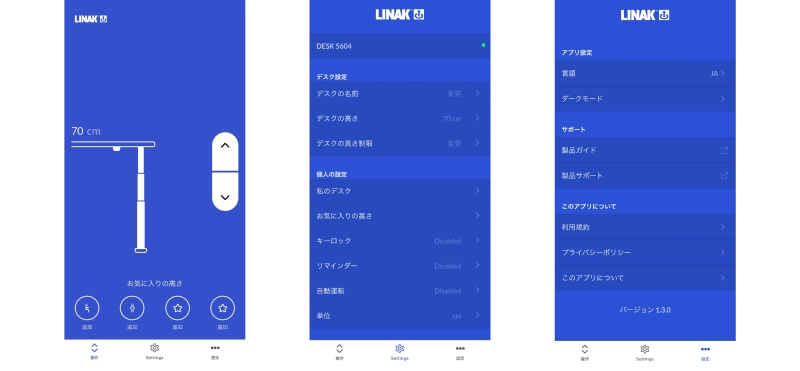
4-1. Screen Layout
The Control screen is the app’s main screen. It lets you operate the desk and shows its current status.
| Element | Description |
|---|---|
| Height display | The current desk height. Updates in real time while the desk moves |
| Favorite icons | Show your saved favorite positions. Tap to recall |
| Up/down arrow buttons | Press and hold to move the desk up or down |
| Gear icon | Opens the Desk Settings menu |
4-2. Raising and Lowering from the App
| Action | How |
|---|---|
| Raise the tabletop | Press and hold the up arrow button |
| Lower the tabletop | Press and hold the down arrow button |
| Stop | Release the button |
| Move to a favorite position | Tap a favorite icon (when automatic drive is enabled) |
Duty cycle: after a maximum of 1 minute of continuous operation, allow at least 9 minutes of rest. Normal switching between sitting and standing will rarely exceed this.
4-3. Switching Desks
Tap “My desks” to show a list of previously connected desks.
- The desk currently connected is marked with a green dot.
- Tap another desk’s ID to disconnect from the current desk and connect to the selected one.
- You can also connect to a new desk with “CONNECT NEW DESK”.
5. Desk Settings
Tap the gear icon on the Control screen to open the “Desk Settings” menu.
5-1. Changing the Desk Name
You can give the desk an easy-to-recognize name.
- Press “Desk name”.
- Enter a new desk name (1–10 characters).
- Press “SAVE”.
Example: naming them “Front” and “Rear” makes the two desk panels easier to tell apart.
5-2. Adjusting the Height Display
Use this if the height shown on the display differs from the actual height.
- Using a tape measure or similar, measure the actual height from the floor to the top surface of the tabletop.
- Press “Desk height”.
- Enter the actual desk height.
- Press “SAVE”.
Note: Changing the height display offsets your saved favorite positions from the actual heights. Always set your favorites again.
5-3. Setting Height Limits
Set upper and lower limits for the desk’s height range to prevent collisions with furniture and pinching.
In homes with children or pets, always set a lower limit for the rear tabletop to prevent legs from being pinched between the storage shelf and the floor, and a lower limit for the front tabletop to prevent pinching between the front tabletop’s drawer and a chair or legs. Setting an upper limit is also recommended.
Procedure:
- Press “Desk height limits”.
- Select “Upper limit” or “Lower limit”.
- Use the DPI1C paddle to move the desk to the desired limit height.
- Press the icon to save the current height as the limit.
Clearing the limits:
- Press “CLEAR LIMITS”.
- Confirm with “Yes”.
Note: “CLEAR LIMITS” clears both the upper and lower limits at once.
5-4. Desk Panel Display Language
Change the language shown on the desk panel display.
- Press “Desk panel language”.
- Select the language you want (a check mark appears next to the selected language).
- Press the back arrow to return to the main settings screen.
6. Settings Screen (User Settings)
Tap “Settings” in the navigation bar at the bottom of the screen to open it.
Note: To use the functions on the Settings screen, the app must be connected to the DPI1C.
6-1. Favorite Positions
You can save up to 4 frequently used heights.
To save:
- Press “Favourite positions”.
- Use the DPI1C paddle to adjust the desk to the height you want.
- Select an icon:
- Sitting icon — height for seated work
- Standing icon — height for standing work
- Star icon — any other favorite height
- Press “SAVE”.
- Press the back arrow to return to the “Settings” screen.
To delete:
- Press “Favourite positions”.
- Press the favorite position you want to delete.
- Press “DELETE”.
- Press the back arrow to return to the “Settings” screen.
Note: To change a favorite position, delete it first and then set it again. You cannot overwrite it directly.
6-2. Key Lock
Locks the paddle to prevent unintended raising and lowering.
RECOMMENDED In homes with children or pets, keep the key lock enabled at all times.
Procedure:
- Press “Keylock”.
- Turn the toggle ON to enable the key lock.
- Select an unlock method:
| Method | Description |
|---|---|
| Double tap | Double-tap the paddle to unlock, then tilt it to operate |
| Double tap, second press to drive | Double-tap the paddle to unlock and start moving at the same time |
| Connect button, double tap | Press the connect button, then double-tap to unlock. The safest method |
RECOMMENDED In homes with children or pets, the “Connect button, double tap” method is the safest.
- Select the time until the key lock activates (countdown after the last paddle operation):
- 3 seconds / 6 seconds / 10 seconds (default: 10 seconds)
- Press the back arrow to return to the “Settings” screen.
- While the key lock is active, a lock symbol appears on the desk panel display.
6-3. My desks
You can view and manage the desks you have paired before.
- Press “My desks”.
- The list of connected desks appears. The desk currently connected is marked with a green dot.
- To connect to another desk, tap the ID of the desk you want, or press “CONNECT NEW DESK”.
- The list can hold up to 5 desks. The most recently connected desk appears at the top.
- If you connect to a sixth desk, the desk at the bottom of the list (the oldest) is removed automatically.
6-4. Automatic Drive
This feature moves the desk automatically to a favorite position when you double-tap the paddle.
Even during automatic movement with automatic drive, always make sure the three hazard areas are clear of people, pets and obstacles. Always stay near the desk while it is moving automatically.
To enable:
- Press “Automatic drive” (it is turned off by default).
- Turn the toggle ON (you can also press “HOW IT WORKS” for an explanation of the feature).
- The “TERMS OF USE” pop-up appears. Press “AGREE” to accept the terms (they cover your responsibility for safety during automatic movement).
- Press the back arrow to return to the “Settings” screen.
How to use:
- Double-tap the paddle up → the desk moves automatically to the next favorite position above the current height
- Double-tap the paddle down → the desk moves automatically to the next favorite position below the current height
- Movement stops if you touch the paddle or close the app during automatic movement.
6-5. Units
Change the unit used to display the height.
- Press “Units”.
- Select the unit you want: CM / MM / INCH
- Press the back arrow to return to the “Settings” screen.
Note: The unit set in the app overrides the unit set in the DPI setting mode.
6-6. Reminders
Set posture-change reminders to keep you from sitting too long. Standing up regularly during the day helps you stay healthy and focused.
Procedure:
- Press “Reminders”.
- Turn the toggle ON to enable reminders.
- Choose a preset or a custom reminder:
Presets:
| Preset | Reminder interval |
|---|---|
| Beginner | After 60 minutes of sitting |
| Average | After 45 minutes of sitting |
| Expert | After 30 minutes of sitting |
Custom:
- Press “Customize reminder”.
- Set the reminder interval (1–180 minutes).
- Press “OK”.
When a reminder notification arrives:
- Favorite positions set + automatic drive enabled → tap the standing icon and the desk moves automatically
- Favorite positions set + automatic drive disabled → press and hold the standing icon to move the desk
- No favorite positions set → press and hold the arrow icon to raise the desk to the height you want
*A bell symbol on the desk panel display indicates that it is time to stand up.
7. More Screen (Other Settings)
Tap “More” in the navigation bar at the bottom of the screen to open it.
7-1. Changing the App Language
- Press “Language”.
- Select the language you want.
- Press the back arrow to return to the “More” screen.
7-2. App Appearance (Dark Mode)
- Press “Dark mode”.
- Select an appearance:
- Light — light background
- Dark — dark background
- System — follows your device setting
- Press the back arrow to return to the “More” screen.
7-3. Support
| Menu | Content |
|---|---|
| Product guide | Detailed information on the DPI1C and the Desk Connect app (LINAK website) |
| Product support | Setup videos and FAQs (LINAK website) |
7-4. Other Information
| Menu | Content |
|---|---|
| Terms and conditions | Full terms of use of the app |
| Privacy policy | LINAK’s privacy policy |
| About | Product information and a link to the privacy policy |
8. Managing Two Desk Panels
8-1. Switching Desk Panels
KIDO Desk has a separate, independent desk panel for the front tabletop and the rear tabletop. To switch which desk panel you operate and configure in the app:
- On the Control screen, tap “My desks”.
- Tap the ID or name of the desk (desk panel) you want to operate.
- When the confirmation message for switching appears, confirm it.
8-2. Settings That Make Identification Easier
To tell the two desk panels apart easily, we recommend the following:
-
Change the desk names: give each desk panel an easy-to-recognize name
- Example: “Front” and “Rear”
- How: gear icon → Desk name
-
Configure each desk panel separately: the following settings must be made on each desk panel
- Height limits (upper and lower)
- Favorite positions
- Height display calibration
- Key lock
- Automatic drive
8-3. Simultaneous Connection
The Desk Connect app can connect to only one DPI1C at a time. To operate the second one, switch to it from My desks.
9. Troubleshooting
| Problem | Possible cause | Solution |
|---|---|---|
| Desk cannot be found | Not in pairing mode | Press the connect button on the bottom of the DPI for 2 seconds to enter pairing mode |
| Desk cannot be found | Bluetooth is off | Turn on Bluetooth in your smartphone settings |
| Desk cannot be found (Android) | GPS location is off | Turn on GPS location |
| Desk cannot be found | Too far from the DPI | Bring your smartphone closer to the DPI |
| Connection drops frequently | App moved to the background | Keep the app in the foreground while operating |
| Connection drops frequently | Distance or obstacles | Move your smartphone closer to the DPI |
| Cannot operate from the app | Key lock is active | Unlock using the selected unlock method |
| Cannot operate from the app | Connection to the DPI lost | Reopen the app and wait for it to reconnect automatically |
| Settings are not applied | Conflict between DPI setting mode and the app | Configure settings using only one of the two |
| Cannot save a favorite | All 4 favorites already saved | Delete a favorite you no longer need, then set it again |
| No reminders arrive | Reminders are disabled | Turn the toggle ON under Settings → Reminders |
| Automatic drive does not work | Feature is disabled | Turn the toggle ON under Settings → Automatic drive |
| Automatic drive does not work | No favorites set | Save favorite positions |
| Automatic drive does not work | Terms of use not accepted | Accept the terms when enabling automatic drive |
| App does not work properly | Outdated app version | Update to the latest version in the App Store / Google Play Store |
If the Problem Persists
- Close the app completely and launch it again.
- Delete the Desk Connect connection information in your smartphone’s Bluetooth settings, then pair again.
- Power-cycle the DPI1C (unplug the power plug, wait 30 seconds, then plug it back in).
- Contact Shimizu Zaimokuten support.
10. Important Notes
10-1. App Connection
- When you close the Desk Connect app, the connection to the DPI1C is lost. When you reopen the app, it automatically tries to reconnect.
- On Android devices: even when the app is closed, it automatically tries to connect to the last connected desk (if within range).
10-2. Using the App Together with DPI Setting Mode
Do not mix DPI1C setting mode and Desk Connect app settings. When the desk panel connects to the app, the following settings are overwritten with the app’s values:
- Favorite positions
- Height unit
Make all settings either in the app or in DPI setting mode — not both. For how to use DPI setting mode, see the “Desk Panel Guide”.
10-3. Where Data Is Stored
- Favorite positions, limit settings and so on are stored in the DPI1C itself.
- Deleting the app does not erase the settings stored in the DPI1C.
- After reinstalling the app, you need to pair again.
10-4. Safety Precautions
Even when operating from the app, make sure the following three hazard areas are clear of people, pets and obstacles before raising or lowering the desk.
- Between the front tabletop and the rear tabletop (a gap of about 2.5 cm (1 in))
- Between the underside of the storage shelf and the floor (the rear tabletop and the shelf are one unit and move down together)
- Between the underside of the front tabletop (including the drawer) and a chair or the user’s legs
Do not raise or lower the desk while standing or sitting on the tabletop. Collision detection (PIEZO) is a supplementary safety feature and cannot detect every collision. For details, see the “Safety Instructions” and the “User Manual”.
The contents of this guide are subject to change without notice for product improvement. Please check the official website for the latest version.