KIDO Desk Cable Management Guide
The secret to a clutter-free desk
One of the most attractive features of the KIDO Desk is its “hidden cabling”. This guide shows you how to make the most of the desk’s cable management features to create a clean, tidy workspace.
Before reading this guide, be sure to read the “Safety Instructions”. This guide is a supplementary document focused on cabling and does not cover all safety information.
The KIDO Desk Cable System
Problems it solves
- Monitor cables tangled on top of the desk
- Visible power strips that make the space look cluttered
- Worry about cables being pulled every time the desk moves up or down
- No good place to put the PC
The KIDO Desk features three cable management functions designed to solve these problems.
Cable-Management Hub
What is the cable-management hub?
The hub is a cable storage space behind the cable cover panel. It is the central collection point for all cables.
What you can store in the hub
- Two control boxes (pre-installed at the factory)
- Power strip
- AC adapters (monitor or laptop chargers, etc.)
- Excess cable length
Do not cover the control boxes with cables or AC adapters. This prevents heat dissipation and may cause a malfunction. Leave enough space around the control boxes for air to circulate.
Opening and closing the cable cover panel
The cable hub is covered by the cable cover panel and is normally hidden from view. Open this panel to access the inside when working on the cables.
Cable Routes
The KIDO Desk has three main routes for running cables.
Route 1: Tabletop → Hub (cable hole)
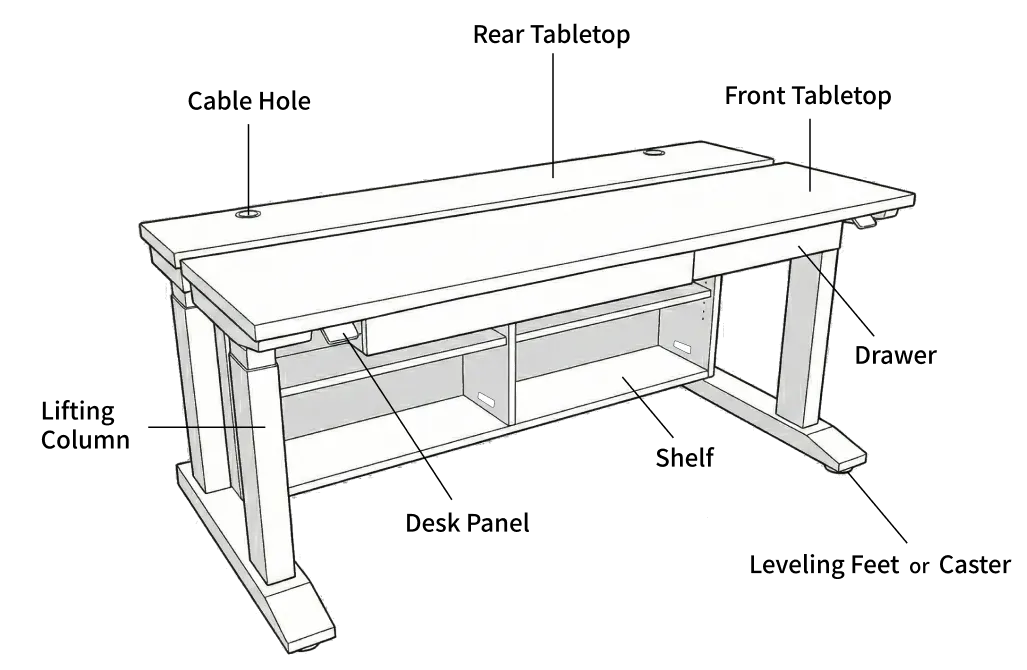
Use the cable hole in the tabletop to run cables from devices on the desk (monitor, desk lamp, etc.) down to the cable-management hub.
Examples of cables to route:
- Monitor power cable
- Monitor video cable (HDMI, DisplayPort, etc.)
- Desk lamp cable
- Wireless charger cable
Route 2: Storage shelf → Hub (gap between shelf and back panel)
Guide cables from devices placed on the storage shelf to the hub through the gap between the shelf and the back panel.
Examples of cables to route:
- PC power cable
- PC USB cables
- External HDD cable
- NAS or router cables
Route 3: Cable hole between the hubs
This cable hole connects the two cable spaces. The lifting motor cables and similar wiring run through it.
Cabling Procedure (Recommended Order)
Cable work requires you to put your hands and arms near the moving parts of the desk. Before starting, be sure to check the following.
- Enable the key lock function in the Desk Connect app or unplug the power plug before starting work.
- Warn people nearby not to operate the desk while you are working on the cables.
- Operating the desk with any part of your body in one of the product’s three pinch points (① between the front tabletop and the rear tabletop, ② between the underside of the storage shelf and the floor, ③ between the underside of the front tabletop (including the drawer) and the chair or the user’s legs) can cause serious injury such as broken bones.
Step 1: Make a plan
Before you start, check the following.
- What will go on the tabletop (monitor, desk lamp, charger, etc.)
- What will go on the storage shelf (PC, power strip, external HDD, etc.)
- Which cables you need
- Where the wall outlets are
Step 2: Place devices on the storage shelf
- Raise the rear tabletop to expose the storage shelf.
- Place your PC, external HDD, etc. on the shelf.
Tip: Use a non-slip mat under devices on the shelf so they do not move from the vibration of height adjustment.
Step 3: Organize the cable-management hub
- Open the cable cover panel.
- Place the power strip inside the hub.
- Plug the power plugs of both control boxes into the power strip.
- Check the power cable running to the wall outlet.
Use a power strip with enough capacity for the total power consumption of all connected devices. Exceeding the capacity can cause overheating or fire. Use a power strip certified for use in your country (e.g. CE, UL).
Keep the power plug at the wall outlet within easy reach in an emergency. The power strip in the hub is convenient, but do not hide the wall plug.
Step 4: Route the cables for each device
- Guide the cables of devices on the shelf to the hub through Route 2 (gap between shelf and back panel).
- Guide the cables of devices on the tabletop to the hub through Route 1 (cable hole in the tabletop).
- Plug each cable into the power strip in the hub.
Step 5: Tidy up excess cable length
- Bundle excess cable inside the hub.
- Use cable ties or clips to bundle cables for an even neater result.
- Close the cable cover panel.
Step 6: Test the height adjustment
- When the cable work is finished, reconnect the power plug (if unplugged) and release the key lock.
- Make sure there are no people or obstacles around the desk.
- Move the tabletops from the lowest to the highest position.
- Check that no cables are pulled or pinched.
- If there is a problem, unplug the power plug or enable the key lock again before adjusting the cable slack.
The PIEZO collision detection function of this product is an auxiliary safety function. It may not detect soft objects such as cables or soft parts of the human body. Always check visually for safety during the height adjustment test.
When repeating the height adjustment test, observe the duty cycle (after 1 minute of continuous operation, pause for at least 9 minutes). Otherwise, the motors may overheat or fail.
Cable Management Tips
Tip 1: Always leave slack in cables
On a height-adjustable desk, the tabletops move up and down, so cables need extra length.
- Leave enough slack so that cables are not pulled tight at both the lowest and highest positions.
- Too little slack can cause cables to be pulled during height adjustment, resulting in devices falling or cables breaking.
Tip 2: Keep cables away from moving parts
- Secure cables with clips or cable guides so they do not get caught in the moving parts of the desk (lifting columns, etc.).
- Take particular care that cables do not get into the gap between the tabletops (approx. 2.5 cm (1 in)).
Tip 3: Do not force-bend motor cables
- The minimum bending radius of the motor cables is 30 mm (1.2 in).
- Bending them at a sharp angle may damage the internal wires.
- Do not tighten cable ties too much either.
Tip 4: Do not bundle cables too tightly
- Tightly bundling power cables with signal cables (HDMI, etc.) can cause noise from electromagnetic interference.
- The lifting motor cables in particular generate electromagnetic noise during operation, so route them separately from signal cables such as HDMI and USB.
- If you bundle cables, keep the bundles loose.
Tip 5: Use labels
- With many cables, it becomes hard to tell which cable belongs to which device.
- Labeling your cables makes it much easier to add or replace devices later.
Common Cabling Examples
Basic setup (one monitor + PC)
On the tabletop: Monitor On the storage shelf: PC
| Cable | Route |
|---|---|
| Monitor power | Tabletop → cable hole → hub → power strip |
| HDMI / DisplayPort | Tabletop → cable hole → hub → gap between shelf and back panel → PC |
| PC power | Shelf → gap between shelf and back panel → hub → power strip |
| USB cable | Tabletop → cable hole → hub → gap between shelf and back panel → PC |
Extended setup (two monitors + PC + peripherals)
In addition to the above:
| Cable | Route |
|---|---|
| Second monitor power | Tabletop → cable hole → hub → power strip |
| Second video cable | Tabletop → cable hole → hub → toward shelf → PC |
| Desk lamp | Tabletop → cable hole → hub → power strip |
| Wireless charger | Tabletop → cable hole → hub → power strip |
Cable Safety Precautions
Route cables so they cannot get caught in the following three pinch points. Reaching into these areas with your hands or fingers to handle cables can result in serious injury such as broken bones during height adjustment.
- Between the front tabletop and the rear tabletop (gap of approx. 2.5 cm (1 in))
- Between the underside of the storage shelf and the floor (the rear tabletop and the shelf are one unit and lower together)
- Between the underside of the front tabletop (including the drawer) and the chair or the user’s legs
For details on electrical safety, see the “Safety Instructions”. Pay particular attention to the following:
- Do not touch the power plug with wet hands.
- Stop using a damaged power cord immediately.
- If either control box (there are two) makes an unusual noise or smell, unplug the power plug immediately.
- Leave enough slack so that cables are not pulled or pinched during height adjustment.
- Observe the 30 mm (1.2 in) minimum bending radius of the motor cables.
- Keep the power plug at the wall outlet within easy reach in an emergency.
- Check the power consumption of connected devices so as not to exceed the capacity of the power strip.
- Do not damage, force-bend, or place heavy objects on power cords.
If you notice anything unusual (strange smell, smoke, unusual noise, etc.) during cable work, stop work immediately and unplug the power plug from the outlet. Then contact Shimizu Zaimokuten support.
Accessories
The KIDO Desk comes with the following accessories to help you organize cables.
| Accessory | Use |
|---|---|
| Hook-and-loop straps | Bundle excess cable length. Cut to the length you need. Unlike cable ties, they can be fastened and removed repeatedly |
| Spring cable holders | Holders that grip and secure cables. Attach them to the underside of the tabletop or to the frame to fix the cable route |
| Adhesive cable clips | Small clips that stick on to hold cables. Place several along the cable route for a neat result |
Note: Attach the adhesive holders and clips to the underside of the tabletop or to the frame. If attached to the top surface of the tabletop, the finish may be damaged when you remove them.
The contents of this document are subject to change without notice for product improvement. Check the official website for the latest version.